How to Disable Google Workspace App Passwords Securely
Reviewed by Neil Frick — November 2026
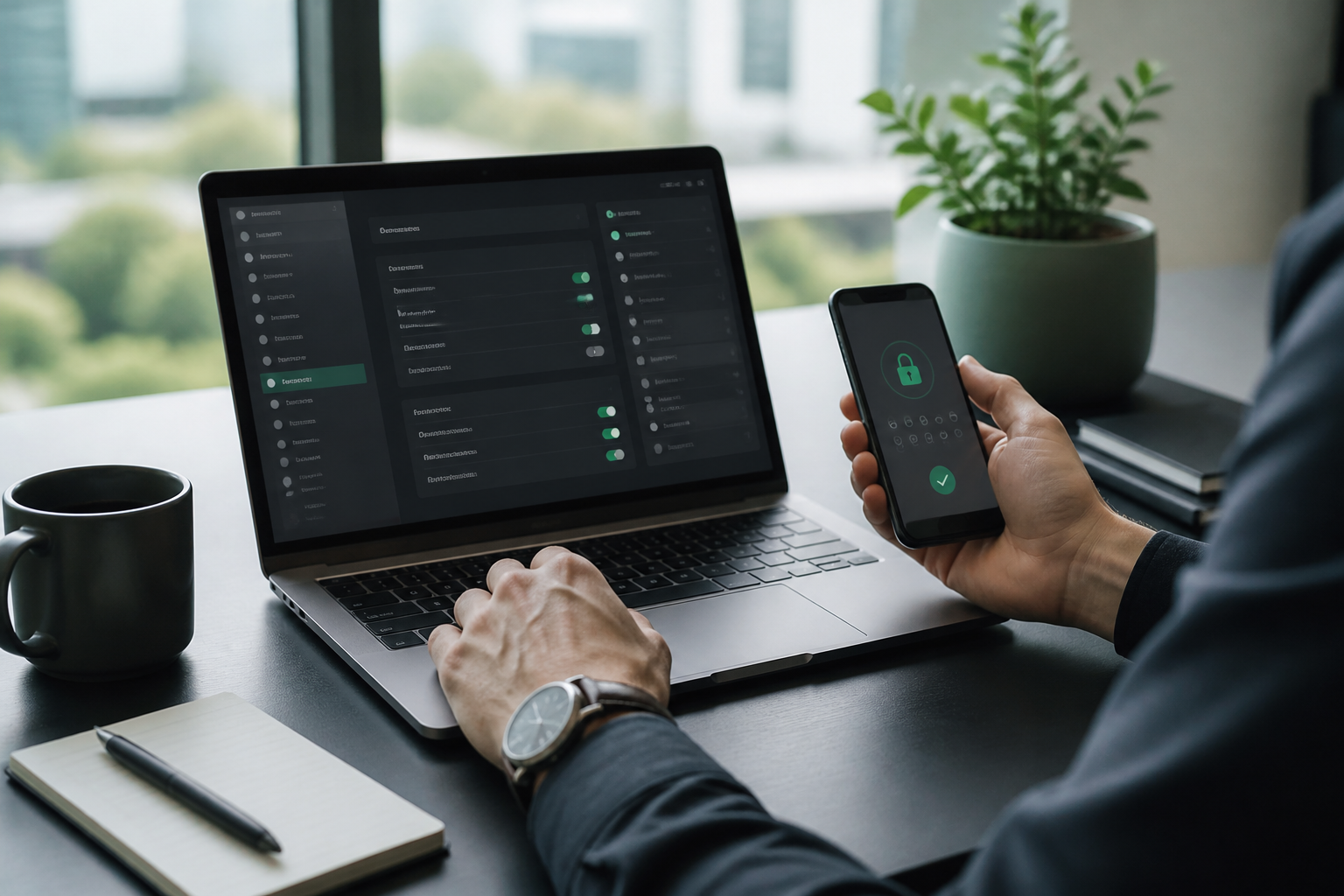
▶ Watch the short explainer for this tip
Your office printer scans documents to email. Your accounts software sends invoices automatically. Everything works as it should, so why would you give it another thought? What you might not realise is that some older applications and devices use special passwords to connect to your Google Workspace email. These are called app passwords, and while they make connecting older technology easier, they can also create a security risk. If one of these passwords falls into the wrong hands, someone could potentially access your business email without going through the usual identity checks. The good news is that Google Workspace provides ways to manage these connections. However, removing them without checking what depends on them could interrupt everyday business operations. Quick Answer: Google Workspace allows administrators to restrict new app passwords and remove existing ones, but there isn't a single switch that does both. To prevent new app passwords, administrators can enforce security-key-only two-step verification. Existing app passwords must also be revoked separately. Before making changes, check which printers, applications and automated systems rely on these passwords. Set up and test suitable replacement connections first to avoid unnecessary interruptions.
What Exactly is an App Password?
Most of us are familiar with two-step verification. When you sign in to an account, you're asked to confirm your identity using another method, such as an authentication app or security key. It's an important safeguard against unauthorised access. However, some older applications and devices can't use Google's normal sign-in process. To work around this, Google Workspace can allow them to connect using a specially generated 16-character password. The problem is that these connections don't require that additional identity check each time they're used. And because app passwords are often created when equipment or software is first installed, they can remain active for years without anyone reviewing them.
| Control | Where to manage it | Recommended approach |
|---|---|---|
| 2-Step Verification policy | Security > Authentication > 2-Step Verification | Select the relevant organisational unit and review inherited settings. |
| Prevent new app passwords | Methods > Only security key | Enforce after users have enrolled suitable security keys and recovery is ready. |
| Revoke existing app passwords | Directory > Users > select user > Security > Application-specific passwords | Revoke credentials after testing replacement connections. |
| Replacement connections | Each app or device's configuration | Use Google sign-in through Open Authorization (OAuth), which authorises app access without an app password. For sending devices, consider a suitably restricted Simple Mail Transfer Protocol (SMTP) relay. |
| Timing | Your rollout plan | Migrate dependencies before enforcement and test after policy changes apply. |
| Licensing and costs | Existing Google Workspace administration controls | No premium security add-on is needed for these controls. Budget for keys, device changes and support where required. |
Revoking a password does not by itself prevent the user creating another. Google's retired Less secure apps control is not the way to manage app passwords.
Why Should Your Business Be Concerned?
Imagine discovering that an old application still has access to your business email, even though nobody remembers setting it up. If someone obtains its app password, they may be able to access your email through a compatible application without another verification prompt. This could expose sensitive business information or provide another opportunity for cybercriminals to interfere with your communications. Removing unnecessary app passwords closes access points that may have been forgotten. Where possible, older connections should be replaced with more secure alternatives, such as Google's supported sign-in methods. These alternatives provide better ways to manage access, although they still need to be configured and maintained correctly.
Could Your Business Have App Passwords You Don't Know About?
Quite possibly. Think about the equipment and applications your business uses every day. Your office printer might scan documents directly to email. Your accounts software may send invoices automatically. You might even have an older email application still connecting in the background. Some of these connections could have been established years ago, possibly by an employee or IT provider who is no longer involved with your business. The question is, does anyone know which connections are still active, whether they're needed and how securely they're configured? For Australian small businesses, it's another reminder that cybersecurity isn't just about protecting computers. It's also about understanding which applications and devices have access to important business information.
Can You Simply Switch Off App Passwords?
Unfortunately, it's not quite that simple. Google Workspace allows administrators to prevent users from creating new app passwords by requiring security-key-only two-step verification. A security key is a physical device or other supported authentication method used to confirm someone's identity when signing in. However, preventing new app passwords and removing existing ones are two separate tasks. Existing passwords need to be identified and revoked individually. Before making these changes, it's important to check what depends on them. Removing an app password without preparing a replacement connection could stop your printer sending scanned documents, interrupt automated invoices or prevent older applications from accessing email. That's why changes should be planned and tested rather than simply switching things off.
- List accounts, apps, scanners and automated jobs that use app passwords, and assign an owner to each.
- Move dependent connections to supported Google sign-in or a suitably restricted sending relay, then test them.
- Enrol affected users in security keys and prepare spare keys and administrator-assisted recovery.
- Open Security > Authentication > 2-Step Verification in the Google Admin console and select the relevant organisational unit.
- Set Methods to Only security key and enforce the policy after users are ready; check for inherited settings or group overrides.
- Open Directory > Users, select each affected user, then open Security > Application-specific passwords and revoke existing credentials.
- Test that revoked credentials fail on a fresh connection and that replacement connections still work.
- Monitor delivery failures and support requests, and check that affected users cannot create new app passwords.
Steps to remove app passwords safely
This is something your Google Workspace administrator or IT provider should manage. The process involves identifying existing connections, preparing alternatives and checking that everything continues working. For those managing their own Google Workspace environment, the following steps provide a practical starting point. Identify existing connections. List the applications, printers, scanners and automated systems that use app passwords. Establish who is responsible for each connection. Prepare replacement connections. Where supported, move applications to Google's more secure sign-in methods. Some printers and scanners may need a properly secured email relay instead. Prepare security keys and account recovery. Make sure affected employees have suitable security keys and that recovery arrangements are in place before changing sign-in requirements. Review your Google Workspace settings. In the Google Admin console, navigate to Security > Authentication > 2-Step Verification. Select the relevant organisational unit and check which policies apply. Restrict new app passwords. Once users are prepared, configure the Only security key verification method and enforce the policy for the intended users. Check for inherited settings or policy exceptions. Remove existing app passwords. Under Directory > Users, select the relevant user, open their security settings and revoke application-specific passwords once replacement connections are working. Test your changes. Confirm old passwords no longer work and that printers, applications and automated messages continue operating as expected. Monitor for problems. Check for email delivery failures, connection errors and support requests. Confirm affected users can no longer create new app passwords. Start with a small group of users or devices before making changes across your entire business. The aim is to improve security without interrupting the systems your employees rely on.
Will These Changes Cost Your Business Money?
Not necessarily. The Google Workspace administration settings used to manage app passwords and two-step verification don't require an additional premium security subscription. However, there may be some practical costs. Older equipment might need updating, employees may require physical security keys, or your IT provider may need time to configure replacement connections. In some cases, an unsupported application or printer may need replacing. Checking compatibility before making changes can help avoid unnecessary expense and disruption.
What Are The Most Common Mistakes?
One of the biggest mistakes is assuming that because Google has discontinued older, less secure sign-in methods, all app passwords have automatically disappeared. They haven't. App passwords are separate credentials and need to be reviewed. Another mistake is assuming every printer or application can use modern Google sign-in methods. Some equipment may need a different solution, such as a properly secured email-sending service. It's also important to prepare backup security keys and account recovery options before enforcing stronger sign-in requirements. A little preparation can save a lot of frustration later.
How can you verify the changes worked?
Once the changes have been made, your IT provider should confirm two things. First, the old app passwords no longer provide access. Second, your approved applications and devices are still working correctly. That means testing printers, automated invoices, scheduled notifications and any other systems that send or receive email. It's also worth confirming that users covered by the new policy can no longer create app passwords. Some Google Workspace changes may take time to apply, so ongoing checks are important.
When Was Your Google Workspace Security Last Reviewed?
Technology changes, employees come and go, and businesses introduce new software without always reviewing what's already connected. A system that was perfectly suitable five years ago may no longer offer the level of protection your business needs today. App passwords are just one area worth checking. Administrator access, account recovery, connected applications and email security settings also deserve regular attention. It's worth asking your IT provider three simple questions: Are any of our applications or devices still using app passwords? Are those connections necessary, and could they be made more secure? When did we last review which applications have access to our business email? You don't need to understand every technical detail of your Google Workspace security. You just need to know that someone is reviewing it and looking after it. If you're unsure how securely your business email is configured, a security review can help identify potential gaps and give you a clearer understanding of what needs attention.
Old app passwords can provide forgotten access to your business email. Before removing them, identify the applications and devices that rely on them and test more secure replacement connections. Improving security shouldn't mean interrupting your business.
Disclaimer: This tech tip provides general educational information and does not constitute formal technical, legal, or cybersecurity advice. Individual IT environments vary; always test policy changes before rolling them out across production systems.
Complimentary guide
Business Cloud Security Checklist
Frequently asked questions
- Is there a Google Workspace checkbox to disable app passwords?
- No, there is no standalone admin checkbox for app passwords. Enforcing 2-Step Verification with the Only security key method prevents users creating new app passwords. Explicitly revoke existing credentials in each user's security settings.
- Can users create another app password after one is revoked?
- Yes, if their account remains eligible to create app passwords. Revocation removes that credential; enforce the Only security key method to prevent users covered by the policy creating replacements.
- Does removing app passwords force every connection to use OAuth?
- No, removing app passwords does not automatically convert connections to OAuth, Google's supported authorisation approach for compatible apps. Configure and test each replacement separately; some sending devices may need an appropriately restricted SMTP relay instead.
- Will my office printer stop scanning to email?
- It can stop working if it relies on an app password you remove. Test a supported replacement connection before removing its existing access.
- Do I need a more expensive Google Workspace licence?
- No premium security add-on is needed for the user-security and 2-Step Verification controls described here. You may still need to pay for security keys, device upgrades or implementation support.
- How quickly will the changes take effect?
- Policy changes are not necessarily immediate. Allow time for policy propagation, test revoked credentials on fresh connections and verify scheduled tasks after their next run.
- Does this establish privacy compliance or satisfy cyber insurance requirements?
- No, this control alone does not establish compliance or satisfy an insurance policy. It supports broader cybersecurity controls; assess privacy obligations and insurance conditions separately.
Sources
Every reference below was link-checked when this article was published.
- 1.Control access to less secure appsGoogle Workspace Admin Help
- 2.Protect your business with 2-Step VerificationGoogle Workspace Admin Help
- 3.Essential Eight Maturity ModelAustralian Signals Directorate — ACSC
Want to know where your own tenant stands?
The audit answers these questions with a dated report on your actual settings — a few questions to start, under a minute.