
SecureMyEmail logoSecureMyEmail

Microsoft 365 security guide

Block legacy authentication in Microsoft 365

A practical, step-by-step guide for Australian businesses. Stop password-spray and credential-stuffing attacks by blocking older sign-in protocols that cannot enforce modern multifactor authentication.

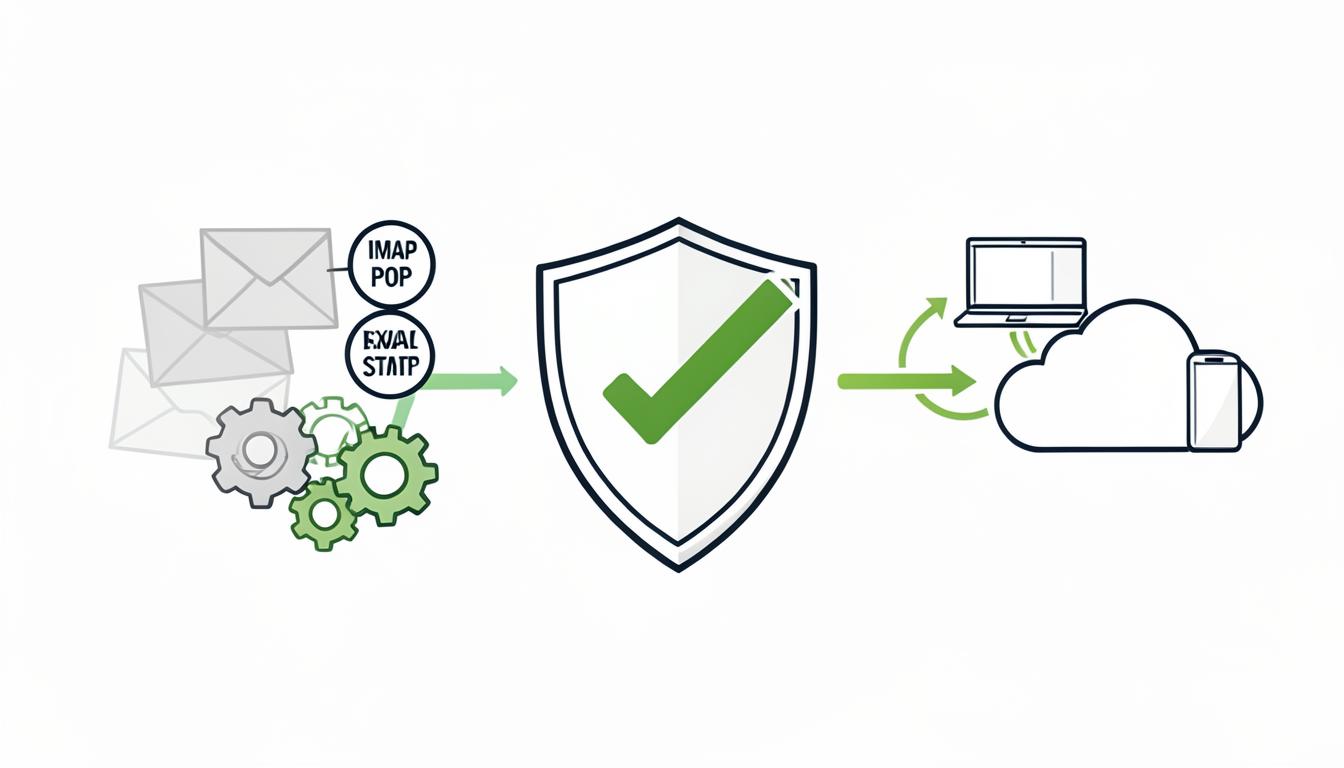
Microsoft 365 legacy authentication blocked: modern shield stopping old protocols like IMAP, POP and SMTP

Recommended method: Conditional Access

Create a Conditional Access policy that targets legacy client apps and blocks them tenant-wide. This requires Microsoft Entra ID P1 or higher. Microsoft 365 Business Premium includes Entra ID P1; Microsoft 365 Business Standard does not. If you do not have Conditional Access licensing, Microsoft Security Defaults can block legacy authentication, but it also enables additional security requirements across the organisation.

Before you begin

You will need:

  • Microsoft Entra ID P1 or P2 licensing for users covered by Conditional Access.
  • A Global Administrator or Conditional Access Administrator account.
  • At least one properly secured emergency access (“break-glass”) administrator account.
  • Access to the Microsoft Entra admin centre.
  • Confirmation that users, devices, applications, scanners and automated systems support modern authentication.

If you do not have Conditional Access licensing, Microsoft Security Defaults can block legacy authentication, but it also enables additional security requirements across the organisation.

Why this matters

Legacy authentication uses older sign-in methods that generally rely only on a username and password and cannot properly enforce multifactor authentication. Blocking it significantly reduces exposure to password-spray and credential-stuffing attacks.

Microsoft reports that legacy authentication is involved in more than 97% of credential-stuffing attacks and more than 99% of password-spray attacks. Microsoft: Block legacy authentication

1

Check for existing legacy authentication

Do not enable the blocking policy without first checking what may be affected.

  • Sign in to the Microsoft Entra admin centre.
  • Select Entra ID.
  • Go to Monitoring & health.
  • Select Sign-in logs.
  • Select Add filters.
  • Select Client app.
  • Select the legacy authentication methods displayed, which may include: Exchange ActiveSync, Exchange Web Services, IMAP, POP, SMTP, MAPI over HTTP and Other clients.
  • Select Apply.
  • Review both User sign-ins (interactive) and User sign-ins (non-interactive).
  • Open each relevant record and identify the user account, the application or device, the legacy protocol being used, the source IP address and whether the attempt succeeded or failed.

Review an appropriate period—preferably at least 7 to 30 days—to account for applications that only run weekly or monthly.

Legacy client apps to look for
Exchange ActiveSync
Exchange Web Services
IMAP
POP
SMTP
MAPI over HTTP
Other clients
2

Investigate affected devices and applications

Before blocking access, check for:

  • Older versions of Microsoft Outlook or Office.
  • Apple Mail, Android mail or other third-party email applications using old account configurations.
  • Multifunction printers and scanners using authenticated SMTP.
  • Applications using IMAP or POP to retrieve messages.
  • Accounting, CRM, backup or reporting applications using Exchange Web Services.
  • PowerShell scripts using stored usernames and passwords.
  • Service accounts used by scheduled tasks.
  • Migration, archiving or email journalling tools.

Upgrade or reconfigure these systems to use modern authentication, OAuth 2.0, Microsoft Graph, a supported email relay method, managed identities or application-based authentication.

3

Create an emergency access exclusion group

  • In the Entra admin centre, go to Entra ID.
  • Select Groups and then All groups.
  • Select New group.
  • Enter a descriptive name, such as: CA Exclusion – Emergency Access Accounts.
  • Add only the authorised emergency access account or accounts.
  • Secure these accounts with long, unique credentials and appropriate monitoring.
  • Do not use emergency accounts for email, web browsing or everyday administration.

The exclusion should not be used for ordinary users, devices or applications that have not yet been upgraded.

4

Create the Conditional Access policy

In the Entra admin centre, go to Entra ID → Conditional Access → Policies and select New policy.

  • Give the policy a clear name, such as: CA – Block Legacy Authentication.
  • Under Assignments, select Users or workload identities. Under Include, select All users. Under Exclude, select Users and groups, choose the emergency access exclusion group created earlier, then select Done.
  • Select Target resources. Under Include, select All resources or All cloud apps, depending on the wording displayed in your portal. Select Done.
  • Under Conditions, select Client apps. Set Configure to Yes. Select only Exchange ActiveSync clients and Other clients. Select Done.
  • Under Access controls, select Grant, then Block access, then Select.

“Other clients” covers legacy authentication clients such as older Office applications and clients using POP, IMAP, SMTP or other basic authentication protocols.

5

Start in Report-only mode

  • Under Enable policy, select Report-only.
  • Carefully review the policy summary.
  • Confirm that all users are included, emergency access accounts are excluded, all resources are included, only legacy client applications are targeted and the access control is set to block.
  • Select Create.

Report-only mode records what the policy would have done without blocking users. Microsoft recommends beginning in this mode before enforcement.

6

Monitor the policy impact

Leave the policy in Report-only mode long enough to capture normal business activity—typically at least 7 days, and preferably longer where monthly processes exist.

  • Return to Entra ID and go to Monitoring & health.
  • Select Sign-in logs.
  • Add the Report-only status filter or column.
  • Look for the new policy.
  • Review results showing that the policy would have blocked access.
  • Resolve each legitimate dependency before proceeding.

Do not disregard repeated failed legacy attempts. They may indicate an outdated system, an incorrectly configured device or an external password attack.

7

Conduct a pilot deployment

For larger or more complex organisations, test enforcement with a pilot group first.

  • Open the Conditional Access policy.
  • Change Users or workload identities from All users to a selected pilot group.
  • Keep emergency access accounts excluded.
  • Change Enable policy from Report-only to On.
  • Save the policy.
  • Test Outlook desktop and mobile, Teams, OneDrive and SharePoint, shared and delegated mailboxes, mobile email, printers and scanners, line-of-business applications, and automated scripts and reports.
  • Monitor support requests and Entra sign-in logs.
8

Enable the policy for everyone

After all legitimate legacy authentication has been removed:

  • Open CA – Block Legacy Authentication.
  • Under Users or workload identities, select All users.
  • Confirm the emergency access group remains excluded.
  • Set Enable policy to On.
  • Select Save.
  • Confirm the policy shows as On in the policy list.
9

Verify enforcement

  • Return to Monitoring & health → Sign-in logs.
  • Filter by Client app, Conditional Access and Failure reason.
  • Confirm legacy authentication attempts are being blocked.
  • Test normal access using supported Microsoft 365 applications.
  • Confirm the emergency access account can still access the tenant.
  • Continue monitoring for several days after activation.

Additional Exchange Online protection

The Conditional Access policy is the broad tenant-level control. Exchange Online authentication policies can provide additional protocol-level protection and can block Basic Authentication before requests reach the identity provider.

Microsoft notes that the simplified Microsoft 365 admin-centre controls do not disable every possible legacy service. Advanced environments should have an experienced Microsoft 365 engineer review Exchange Online authentication policies as well.

What could go wrong?

  • Older versions of Outlook or Office may stop connecting.
  • Users may be repeatedly prompted for credentials.
  • Older mobile email applications may stop synchronising.
  • Shared mailboxes configured in outdated applications may stop working.
  • Printers and scanners may stop sending email.
  • POP or IMAP mailbox integrations may fail.
  • Automated reports, backups and scheduled scripts may stop running.
  • CRM, accounting or document-management integrations may fail.
  • App passwords may stop working.
  • Administrators may be locked out if the policy is configured incorrectly.
  • Intermittent failures may occur where an application uses modern authentication for some functions but legacy authentication for others.
  • SMTP AUTH is not necessarily legacy in every situation—it can use OAuth—but applications using a stored username and password may fail.

Emergency rollback

  1. Sign in using the secured emergency access administrator account.
  2. Open Entra ID → Conditional Access → Policies.
  3. Select CA – Block Legacy Authentication.
  4. Change Enable policy to Report-only or Off.
  5. Select Save.
  6. Confirm access has been restored.
  7. Investigate and modernise the affected service before turning the policy back on.

Avoid leaving the policy disabled longer than necessary.

Microsoft 365 disclaimer

These instructions provide general security guidance and may not account for your organisation’s licensing, hybrid identity configuration, third-party applications, service accounts, compliance requirements or business-critical systems.

Incorrectly configuring Conditional Access can prevent users and administrators from accessing Microsoft 365 or cause email, scanners, applications and automated services to stop working. Backout procedures and properly secured emergency access accounts should be established and tested before enforcement.

If you are uncertain about any setting or cannot fully identify existing legacy authentication dependencies, engage a qualified Microsoft 365 security engineer to assess, test and implement the change. You accept responsibility for any disruption, data-access issue or lockout resulting from changes made without professional assistance.