SecureMyEmail logoSecureMyEmail

Google Workspace security guide

Back up and retain Google Workspace data

A practical guide for Australian businesses. Combine Google Vault retention with an independent Google Workspace backup service for recoverable, compliant data protection.

Google Workspace backup and retention data protection

Recommended method: combine Google Vault with an independent Google Workspace backup service

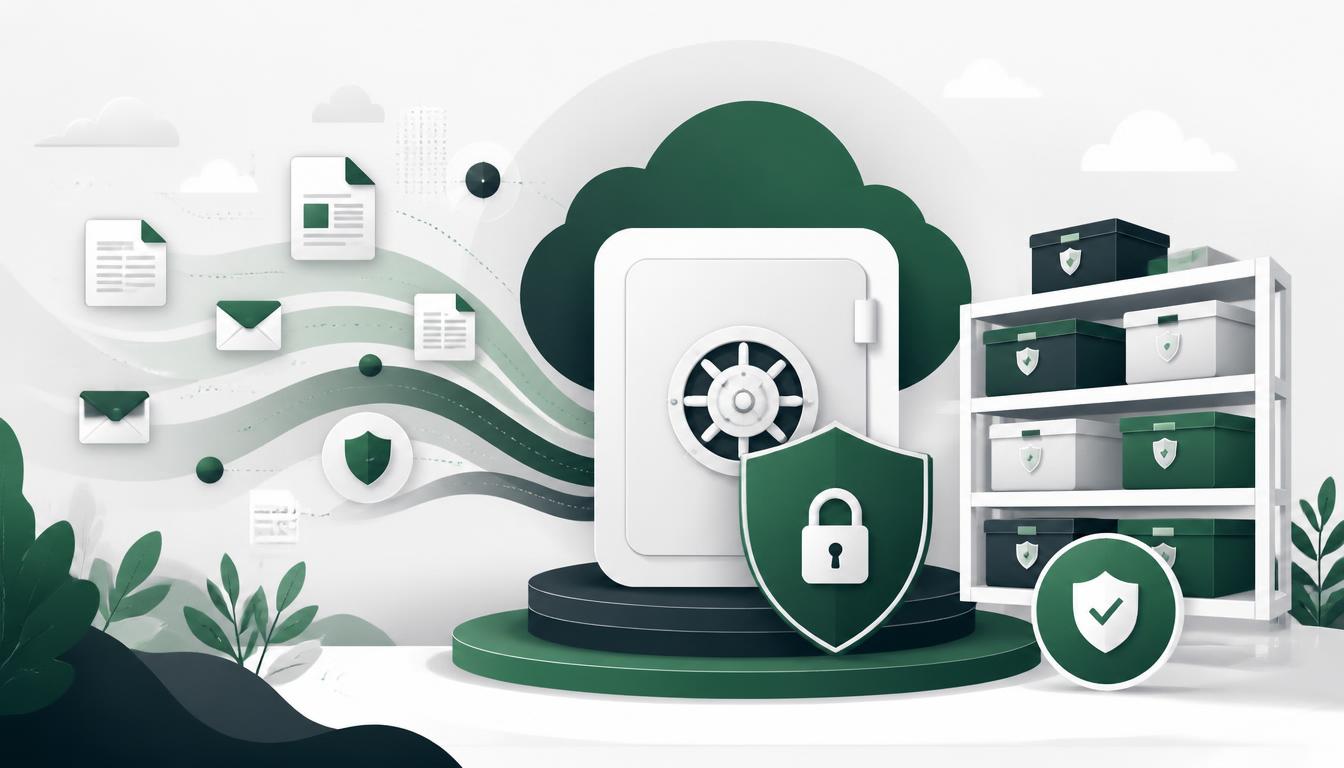
Deleted or corrupted emails and files may still be required later for business continuity, legal obligations, compliance investigations or recovery from a cyber incident. The recommended approach is to use both Google Vault for retention, legal holds, search and export, and an independent Google Workspace backup service for convenient point-in-time restoration.

Recommended configuration

For most small businesses:

  • Retain Gmail and Google Drive data for an approved period, commonly seven years where appropriate.
  • Apply retention to all users and shared drives.
  • Use a dedicated backup service covering Gmail, Drive, shared drives, Calendar and Contacts.
  • Automatically add new users and shared drives to the backup.
  • Retain former employees’ backups for the required period.
  • Protect backup and Vault administrators with 2-Step Verification.
  • Test email and file restoration at least quarterly.

Important: Google Vault is an information governance and eDiscovery service—not a traditional backup system. Vault can preserve and export retained information, but it cannot directly restore Vault-held Gmail messages to a user’s mailbox.

Retention periods must be approved according to your organisation’s legal, industry, privacy and contractual requirements.

1

Confirm Google Vault availability

Google Vault is included with some Google Workspace editions and available as an add-on for others.

  • Sign in to the Google Admin console using a Super Administrator account.
  • Select Billing.
  • Select Subscriptions.
  • Check whether your subscription includes Google Vault.
  • If Vault is not available, contact your Google Workspace provider to confirm whether your edition can be upgraded, whether Vault can be added separately, which users require Vault licences, and whether licence removal could affect retained data.
  • Confirm that the necessary Vault licences have been assigned before creating retention rules.
2

Decide what must be retained

Before changing any setting, prepare a list of:

  • Active users
  • Former employees
  • Shared drives
  • Google Groups
  • Google Chat spaces
  • Calendar data
  • Google Meet recordings
  • Business-critical Gmail and Drive content
  • Prepare a list of the items above.
  • Confirm the required retention period with management and, where appropriate, a legal or compliance adviser.
  • Identify users or information currently involved in litigation, employment disputes, regulatory investigations, insurance claims or security incidents.
  • Use a legal hold for information associated with an active matter rather than relying only on a general retention rule.
  • Document the approved retention period, services covered, treatment of former employees, what happens when retention expires, and who authorised the settings.
3

Create a default Gmail retention rule

A default rule provides broad coverage for Gmail messages that are not governed by a custom rule or hold.

  • Sign in to Google Vault.
  • Select Retention from the left menu.
  • Open the list of Default rules.
  • Select Gmail.
  • Choose either Indefinitely to prevent retained Gmail data from expiring, or Retention period and enter the approved number of days. For a seven-year retention period, enter 2555 days.
  • Consider leap years and obtain compliance approval before adopting this value.
  • Select what should happen when the retention period expires.
  • For a cautious initial configuration, select the option that purges only messages that users have already permanently deleted, if available and appropriate.
  • Review the rule carefully.
  • Select Save or Create.
  • Accept the warning only after confirming the settings are correct.

The Gmail retention period generally begins on the day a message was sent or received, not the day it was deleted.

4

Create a default Google Drive retention rule

This protects eligible files in users’ My Drive and shared drives where no custom rule or hold applies.

  • In Google Vault, select Retention.
  • Open Default rules.
  • Select Drive.
  • Choose either Indefinitely, or Retention period followed by the approved number of days.
  • Select when the retention period begins: Date created, Date modified, Date moved to trash, or a supported Drive label date. For general business retention, Date created is often easier to understand and audit. However, confirm this against your legal requirements.
  • Select the expiry action. The safer general option is normally Purge only permanently deleted items. Avoid selecting Purge all items in users’ Drives unless the organisation has specifically approved automatic deletion of active files.
  • Review the rule carefully.
  • Select Create.
  • Accept the confirmation only when you are certain that the settings will not unexpectedly delete information.

Google warns that a misconfigured Drive retention rule can cause immediate and irreversible purging. New or changed rules can also take up to 24 hours to propagate.

5

Protect shared drives

Confirm that shared-drive data has not been overlooked.

  • In Vault, open Retention.
  • Select Custom rules.
  • Select Create.
  • For Service, select Drive.
  • Choose either All shared drives, or Specific shared drives.
  • If selecting specific drives, search for and add each required shared drive.
  • Select Continue.
  • Choose the approved retention period or select Indefinitely.
  • Choose when retention begins.
  • Select the required expiry action.
  • Review the scope carefully.
  • Select Create and accept the warning.

If the default Drive rule already gives the correct organisation-wide coverage, a separate custom rule may not be necessary.

6

Configure other supported services

Depending on which services the organisation uses and its Google Workspace edition, consider separate retention rules for:

  • Google Chat
  • Google Groups
  • Google Meet
  • Google Calendar
  • Google Sites
  • Google Voice
  • Gemini app conversations
  • Open Google Vault → Retention.
  • Review whether a default rule already exists.
  • Select the relevant service.
  • Apply the approved retention period.
  • Confirm which organisational units, users, spaces or other data locations are covered.
  • Carefully review what occurs when the retention period expires.
  • Test the rule on a small organisational unit before applying it across the organisation.
7

Use legal holds when required

A hold overrides normal retention expiry for covered data.

  • Sign in to Google Vault.
  • Select Matters.
  • Open an existing matter or select Create.
  • Enter a descriptive matter name and description.
  • Open the matter and select Holds.
  • Select Create.
  • Select the applicable service, such as Gmail or Drive.
  • Choose the users, organisational units or shared drives to be placed on hold.
  • Review the scope.
  • Save the hold.
  • Restrict access to the matter to authorised personnel only.
  • Document why the hold was created and who authorised it.

Do not remove a hold without legal or management approval. Data may become eligible for immediate deletion once its final applicable hold or retention rule is removed.

8

Implement an independent backup

Select a reputable Google Workspace backup service that supports the organisation’s required services and recovery objectives.

Confirm that the product can protect:

  • Gmail
  • My Drive
  • Shared drives
  • Google Calendar
  • Google Contacts
  • Google Groups, if required
  • Google Sites or other services, if required

Confirm that it supports:

  • Automatic backups
  • Point-in-time recovery
  • Email-level and folder-level restoration
  • File and folder restoration
  • Previous file versions
  • Shared-drive restoration
  • Former-user retention
  • Automatic protection for new users and drives
  • Backup failure alerts
  • Audit logging
  • Role-based administrative access

Confirm the provider’s:

  • Encryption arrangements
  • Australian data-residency options, if required
  • Retention period
  • Service availability
  • Recovery time
  • Data deletion protections
  • Export and provider-exit procedures
  • Create a dedicated backup administrator account where supported.
  • Enable 2-Step Verification, preferably using passkeys or security keys.
  • Grant only the permissions required by the backup service.
  • Authorise the backup application in Google Workspace.
  • Select all relevant users and shared drives.
  • Turn on automatic protection for new accounts and shared drives.
  • Configure backup failure and coverage alerts.
  • Run the initial backup.
  • Confirm every expected user, mailbox and shared drive reports as protected.
9

Protect departing employees

Complete these steps before deleting a user account:

  • Before deleting a user account, confirm that the user’s Gmail and Drive data have been backed up successfully.
  • Check whether the user is covered by Vault retention rules or legal holds.
  • Transfer important My Drive files to another user.
  • Transfer ownership or management of Calendar events, Google Groups, shared documents, Sites and other business assets.
  • Confirm how the backup provider handles suspended and deleted users.
  • Archive the user through the backup service if supported.
  • Retain the account or licence where required for Vault preservation.
  • Perform a test search or restoration of the former employee’s data.
  • Record the retention expiry date.
  • Delete the user only after the offboarding and retention process has been approved.

Do not assume that deleting and later recreating the same email address will reconnect it to the original user’s data.

10

Test restoration

A backup should not be considered successful until recovery has been tested.

  • Restore a test Gmail message.
  • Restore an entire Gmail label or folder structure if supported.
  • Restore a deleted Drive file.
  • Restore a previous version of a Drive file.
  • Restore a folder containing several files.
  • Test recovery from a shared drive.
  • Restore a Calendar event and Contact if these services are protected.
  • Confirm that restored data opens correctly, belongs to the intended user, has the expected dates and metadata, has appropriate sharing permissions, and has not overwritten newer information unexpectedly.

Test restores should cover items such as:

  • A test Gmail message
  • An entire Gmail label or folder structure if supported
  • A deleted Drive file
  • A previous version of a Drive file
  • A folder containing several files
  • Recovery from a shared drive
  • A Calendar event
  • A Contact if these services are protected

Document:

  • Test date
  • Data tested
  • Restore destination
  • Time required
  • Result
  • Problems discovered
  • Corrective actions
  • Document the test details listed below.
  • Repeat test restores at least quarterly and after major configuration, licensing or backup-platform changes.

Native deleted-data recovery limitations

Google’s standard recovery windows are limited:

  • A deleted Gmail message normally remains in the user’s Trash for 30 days.
  • After that period, an administrator may have an additional 25 days to restore permanently deleted Gmail data.
  • Permanently deleted Drive data may generally be recoverable by an administrator for up to 25 days.
  • Vault-retained Gmail can be searched and exported, but it cannot be restored directly into the user’s Gmail mailbox.

These short recovery windows are one reason to implement independent backup.

Warnings

  • Vault is not a traditional backup. It is designed for retention, legal holds, search and export.
  • Retention rules can delete live information. A rule configured to purge all expired items may delete data users still expect to see.
  • Deletion can be irreversible. Google specifically warns that incorrect retention settings can immediately and permanently purge data.
  • Test on a small group first. Use a test organisational unit before applying new rules across the business.
  • Changing or deleting rules is dangerous. Previously retained data may become immediately eligible for permanent deletion.
  • Retention is not retrospective recovery. A new rule cannot bring back information that was already permanently deleted.
  • Vault does not retain a separate copy. It is integrated with Google’s services; data purged from Vault is purged from Google’s supported production systems.
  • External files may not be covered. Files owned outside your organisation but shared with your users may not be retained or backed up.
  • Folders and shortcuts may behave differently. Confirm how your backup and retention products handle structure, links and permissions.
  • Licence removal can affect retention. Check Vault licensing before removing a departing employee’s licence.
  • Long-term retention has privacy implications. Keeping information longer than necessary may increase legal, privacy and cybersecurity exposure.
  • Backups need separate protection. Secure backup administration with strong authentication and least-privilege access.
  • Successful jobs do not prove recoverability. Perform regular test restores.

Google Workspace backup and retention disclaimer

These instructions provide general Google Workspace security and data-protection guidance only. They are not legal, regulatory or compliance advice. Google Workspace editions, licensing, menus and functionality can change, and the correct retention period depends on your organisation’s industry, contracts, privacy obligations and legal requirements.

Incorrectly configuring, changing or removing Google Vault retention rules or holds can result in unexpected and irreversible deletion of business information. If you are not experienced with Google Vault, Workspace administration, data governance and SaaS backup systems, engage a qualified Google Workspace engineer and obtain appropriate legal or compliance advice before applying these settings to a production environment.