SecureMyEmail logoSecureMyEmail

Google Workspace security guide

Use separate administrator accounts in Google Workspace

A practical, step-by-step guide for Australian businesses. Separate everyday accounts from admin work, apply least-privileged roles, and avoid losing access to Google Workspace.

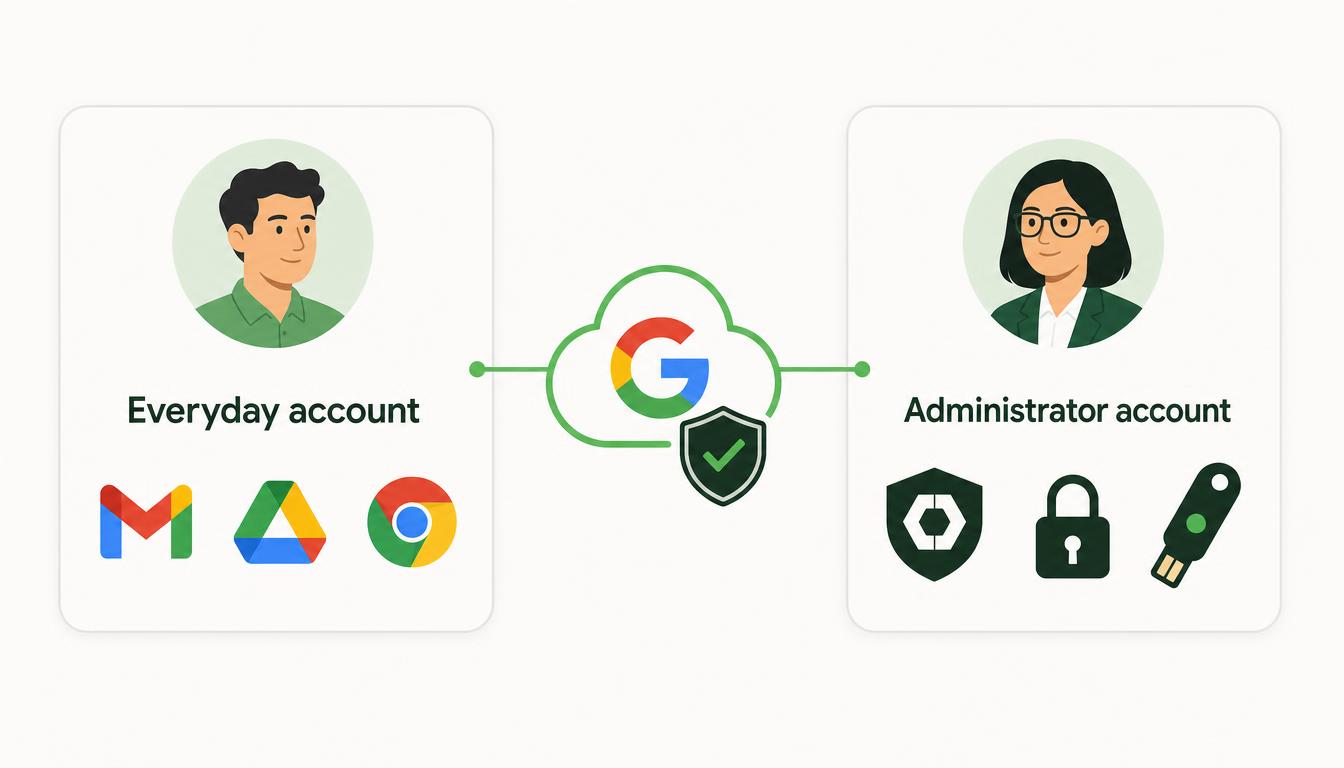
Google Workspace separate administrator accounts: everyday user profile separated from privileged admin account with Google Admin console and security shield

Recommended practice: separate administrator accounts

Google recommends that each administrator use a standard user account for everyday work, email and web browsing, and a separate, identifiable administrator account used only when administration is required. This reduces the likelihood that a phishing email, malicious website, stolen browser session or compromised computer will provide an attacker with administrative access to the entire Google Workspace environment.

Example

Everyday account: neil@business.com.au

Administrator account: admin-neil@business.com.au

Before you begin

Make sure:

  • You are signed in with an existing Super Admin account.
  • You have at least two trusted people who can obtain Super Admin access.
  • You have documented the roles each administrator requires.
  • You have access to the domain's DNS and billing information for account recovery.
  • Administrators have suitable 2-Step Verification methods available.
  • You have a safe recovery method if an administrator loses their phone or security key.

Critical warning: Do not remove administrator privileges from an existing account until the new administrator account has been created, secured and successfully tested. Otherwise, you could lock yourself out of Google Workspace.

1

Create a separate administrator account

Sign in to the Google Admin console as a Super Admin.

Menu → Directory → Users

  • Select Add new user.
  • Enter an identifiable name, such as First name: Neil, Last name: Administrator.
  • Set the primary email to admin-neil@business.com.au.
  • Create or generate a strong temporary password.
  • Select the option requiring the user to change the password at the next sign-in.
  • Select Add new user.
  • Securely provide the temporary password to the intended administrator.

Do not use a generic shared account such as admin@business.com.au for routine administration. Each administrator should have an individually identifiable account so actions can be traced through the audit logs.

Licensing warning: A newly created Google Workspace user may consume a paid licence. Depending on your subscription and configuration, you may be able to use a Cloud Identity account without assigning paid Gmail and Workspace services. Check the account's licence assignment and confirm the implications with your Google reseller before assuming the admin account is free.

2

Decide which administrative role is required

Do not automatically assign Super Admin. Follow the principle of least privilege and give the account only the access required for its work.

  • Identify the task the administrator needs to perform.
  • Choose the least-privileged role from the table below that covers that task.
  • Only assign Super Admin when the administrator must control the entire organisation.
  • Document the chosen role and the business reason for it.

Super Admin accounts can manage users, security, billing, applications and organisation-wide settings. Limit this role to the smallest practical number of highly trusted people. Google recommends using non-Super Admin roles for routine administration whenever possible.

Required taskSuggested Google role
Reset passwords and manage usersUser Management Admin
Manage groupsGroups Admin
Manage user devicesMobile Admin
Manage Google servicesServices Admin
Manage support casesSupport Admin
Manage licencesLicense Management Admin
Review security informationSecurity Admin
Perform limited helpdesk dutiesCustom administrator role
Control the entire organisationSuper Admin
3

Assign the administrator role

Assign a role from the user account.

  • In the Admin console, select Menu → Directory → Users.
  • Find and select the newly created administrator account.
  • Scroll down and select Admin roles and privileges.
  • Find the required administrator role.
  • Move the slider to Assigned.
  • Select Save.

Role changes normally take effect within a few minutes but may take up to 24 hours. Google documents this process under Make a user an administrator.

Administrators working on the same configuration simultaneously can overwrite each other's changes without warning. Coordinate changes and refresh the applicable Admin console page before and after editing it.

Alternatively, assign a role from Admin Roles

  • Select Menu → Account → Admin roles.
  • Select the required role.
  • Select Admins.
  • Select Assign users.
  • Find and select the administrator account.
  • Select Assign role.
4

Secure the new administrator account

Sign out of the existing Google account, then open a private or Incognito browser window and sign in to:

https://myaccount.google.com
  • Change the temporary password when prompted.
  • Open Security.
  • Under How you sign in to Google, configure 2-Step Verification.
  • Prefer one of the following: hardware security key, passkey, Google Prompt or Google Authenticator.
  • Avoid SMS and voice calls except as a temporary fallback.
  • Register a second independent sign-in method.
  • Generate backup codes.
  • Store the backup codes securely and separately from the normal device.
  • Add appropriate account-recovery information.
  • Sign out when setup is complete.

Google considers security keys the strongest 2-Step Verification option because they provide phishing resistance. Google Prompt or an authenticator app are preferable alternatives when security keys cannot be used. Google: Protect your business with 2-Step Verification

Do not enforce a restrictive 2-Step Verification policy until every affected administrator has enrolled an allowed method. Enforcing it too early can lock administrators out.

5

Test the new administrator account

Before changing the existing account:

  • Open a new private or Incognito browser window.
  • Go to https://admin.google.com.
  • Sign in using the new administrator account.
  • Complete the 2-Step Verification challenge.
  • Confirm that the Admin console opens.
  • Confirm that the account can access the required administrative sections.
  • Check that areas outside the assigned responsibilities are unavailable, where applicable.
  • Perform a safe, non-destructive test, such as viewing the user list, viewing groups, viewing security settings or reviewing reports.
  • Sign out after testing.

Do not remove the original administrator permissions if the new account cannot sign in, complete 2-Step Verification or access the required settings.

6

Remove admin rights from the everyday account

Complete this only after the separate admin account has been tested.

  • Sign in to the Admin console using the new administrator account.
  • Select Menu → Directory → Users.
  • Select the administrator's everyday account.
  • Select Admin roles and privileges.
  • Review every role assigned to the account.
  • Change unnecessary roles from Assigned to Unassigned.
  • Select Save.
  • Sign out.
  • Confirm the everyday account can still access Gmail, Drive and normal Workspace services.
  • Confirm the everyday account cannot access restricted Admin console functions.
  • Confirm the separate administrator account retains the necessary access.

Removing administrator permissions may affect scripts, third-party security products, backup systems, directory synchronisation and applications that were improperly configured to use that person's everyday account.

7

Require 2-Step Verification for administrators

Google is enforcing 2-Step Verification for administrator accounts, but you should still review your organisation's enforcement settings.

Menu → Security → Authentication → 2-Step Verification

  • Select the organisational unit or configuration group containing the administrator accounts.
  • Select Allow users to turn on 2-Step Verification if it is not already enabled.
  • Confirm that each administrator has completed enrolment.
  • Under Enforcement, select On.
  • If displayed, choose an appropriate enrolment period for accounts that are not yet enrolled.
  • Review the permitted verification methods.
  • Where supported and practical, restrict administrators to security keys or other phishing-resistant methods.
  • Select Save.
  • Test each administrator account again.

Settings can take time to propagate.

If enforcement is enabled before administrators enrol, they may be unable to sign in. Keep another tested Super Admin account available throughout the change.

8

Maintain more than one Super Admin

Google recommends having more than one Super Admin account, with each account controlled by a separate trusted individual.

  • Create one named Super Admin account for the primary administrator.
  • Create one named Super Admin account for another trusted administrator or qualified IT provider.
  • Use limited administrator accounts for everyday helpdesk and user-management activities.

Do not use one shared Super Admin account among multiple people. Each Super Admin should have at least two secure authentication methods, a spare security key stored securely, backup codes stored in a protected location, and appropriate recovery information. Use the Super Admin account only when Super Admin access is genuinely required.

Creating too many Super Admin accounts increases the number of potential targets. Maintain enough for recovery without granting unnecessary access.

9

Configure administrator recovery

For each administrator account:

  • Sign in to https://myaccount.google.com.
  • Select Security.
  • Review the recovery email address.
  • Review the recovery phone number.
  • Confirm that recovery information belongs to the authorised administrator or is controlled through an approved business process.
  • Generate backup codes.
  • Store recovery information securely.

The organisation should also retain domain registrar and DNS access, Google Workspace customer and billing information, the approximate tenant creation date, original sign-up information, details of the Google Workspace reseller if applicable, and a documented admin-account recovery procedure.

A personal recovery email address or mobile number may become inaccessible when an employee leaves. Review recovery details whenever staff or responsibilities change.

10

Configure important administrator notifications

Because the separate account is not used for email every day, important notices could be missed.

  • In the Admin console, review Account settings and notification settings.
  • Configure appropriate secondary contacts for security notifications, billing notifications, and product and service announcements.
  • Use a monitored business address or appropriate distribution group.
  • Do not automatically forward all administrator-account email externally.
  • Test that notifications are received.
11

Monitor administrator activity

Regularly review what administrators are doing.

Menu → Reporting → Audit and investigation → Admin log events

  • Review administrator sign-ins.
  • Review role assignments.
  • Review security-setting changes.
  • Review user creation and deletion.
  • Review password resets.
  • Review 2-Step Verification changes.
  • Open Menu → Security → Alert centre.
  • Review existing alerts.
  • Configure appropriate alert rules and recipients.
  • Investigate unexpected administrator activity promptly.

Ensure audit logs show actions against individually named accounts rather than a shared admin@ account.

12

Establish safe working practices

Administrators should adopt the following habits:

  • Use their normal account for Gmail, Drive, Meet and everyday browsing.
  • Use the admin account only when an administrative task is required.
  • Use a separate browser profile or private browsing window.
  • Close unrelated browser tabs before signing in as an administrator.
  • Never approve an unexpected Google sign-in prompt.
  • Verify the domain and location shown in security prompts.
  • Avoid saving the admin password in the everyday browser profile.
  • Use a secured, patched and trusted computer.
  • Sign out immediately after completing administrative work.
  • Never share passwords, security keys or backup codes.
  • Review administrator roles at least quarterly.
  • Remove access immediately when an administrator leaves or changes roles.

What could go wrong?

  • All administrators being locked out of the tenant.
  • 2-Step Verification being enforced before enrolment is complete.
  • A security key or phone being lost without a backup method.
  • Too many accounts receiving Super Admin access.
  • An administrator being given insufficient permissions to complete their work.
  • A new administrator account unexpectedly consuming a paid licence.
  • Important Google security or billing notices being missed.
  • Shared accounts preventing identification of who performed a change.
  • Scripts, backups or third-party applications failing after permissions are removed.
  • Recovery information remaining linked to a former employee.
  • Super Admin accounts being used for Gmail and ordinary browsing.
  • Passkeys being stored on untrusted or shared devices.
  • Backup codes being stored insecurely or alongside the account password.
  • Two administrators changing the same setting and unknowingly overwriting each other.
  • A compromised delegated administrator escalating access or changing user accounts.

Google Workspace disclaimer

These instructions provide general Google Workspace security guidance. They may not account for your organisation's Google Workspace edition, Cloud Identity configuration, licensing, organisational units, configuration groups, third-party applications, identity provider, domain arrangements, regulatory requirements or existing security settings.

Incorrectly creating accounts, changing administrator roles or enforcing 2-Step Verification can cause loss of administrative access, service disruption, unexpected licence charges or security vulnerabilities. Before making changes, document the current configuration and verify that multiple secured and tested administrator accounts and recovery methods are available.

If you are not experienced with Google Workspace administration, security keys, account recovery and administrator roles, Netlogyx/Securemyemail recommends having these changes reviewed or implemented by a qualified Google Workspace engineer. The person or organisation making the changes accepts responsibility for testing, recovery, licensing and any disruption resulting from the configuration.