SecureMyEmail logoSecureMyEmail

Google Workspace security guide

How to enable 2-Step Verification in Google Workspace

A practical, step-by-step guide for Australian businesses. Enforce organisation-wide 2-Step Verification, steer users away from SMS codes, and avoid administrator lockout.

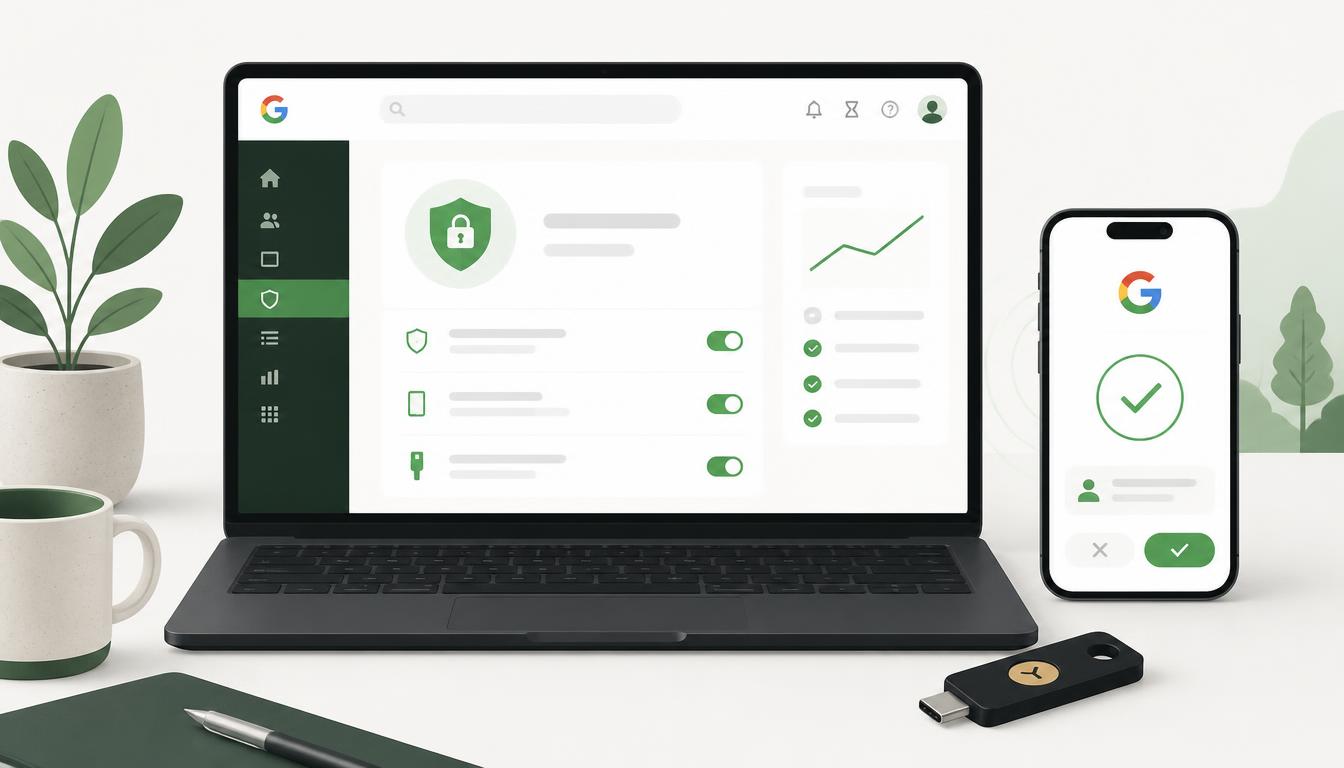
Google Workspace 2-Step Verification setup: laptop Admin console, phone with Google Prompt and FIDO2 security key

Recommended method: 2-Step Verification in the Google Admin console

This enforces organisation-wide MFA for Google Workspace and requires a Super Administrator account. There is no additional licence requirement, but the changes must be made by someone with Super Admin rights.

1

Protect the administrator first

Before enforcing 2-Step Verification, make sure the Super Administrator account is protected.

  • Sign in to the Google Admin console.
  • Ensure the Super Administrator has 2-Step Verification enabled.
  • Register at least two strong methods, such as a passkey, a primary FIDO2 security key, a spare FIDO2 security key, and Google Authenticator as a fallback.
  • Store the spare key securely.
  • Verify that another authorised Super Administrator can access the tenant.
  • Avoid relying exclusively on one administrator's mobile phone.
2

Allow users to enrol in 2-Step Verification

In the Google Admin console, go to:

Menu → Security → Authentication → 2-step verification

  • Select the top-level organisational unit if this will apply to everyone.
  • Tick Allow users to turn on 2-Step Verification.
  • Initially set Enforcement to Off.
  • Select Save.

This creates an enrolment period before enforcement begins.

3

Ask users to register an approved method

Users should visit:

https://myaccount.google.com/security
  • Find How you sign in to Google.
  • Select 2-Step Verification.
  • Follow the enrolment process.
  • Register one or more preferred methods: Passkey, FIDO2 hardware security key, Google Prompt, or Google Authenticator.
  • Preferably register a second backup method.
  • Avoid using SMS or voice unless needed temporarily during the transition.

To create a passkey directly

  • Visit https://myaccount.google.com/signinoptions/passkeys.
  • Users should only create passkeys on devices they own and control — not shared reception, meeting-room or communal computers.
4

Monitor user enrolment

In the Admin console, go to:

Reporting → User reports → Security

  • Add or review columns for 2-Step Verification enrolment.
  • Add or review columns for 2-Step Verification enforcement.
  • Add or review columns for Number of registered security keys.
  • Identify users who have not enrolled.
  • Contact those users before enabling enforcement.

Google advises confirming enrolment before enforcement because unprepared users may be locked out.

5

Enforce 2-Step Verification for everyone

Return to:

Security → Authentication → 2-step verification

  • Select the top-level organisational unit.
  • Confirm Allow users to turn on 2-Step Verification is enabled.
  • Under Enforcement, choose On to enforce immediately, or Turn on enforcement from date to schedule the rollout.
  • For New user enrolment period, select an appropriate period — commonly seven days for small businesses.
  • Under Frequency, leave Allow users to trust the device unticked for stronger protection.
  • Under Methods, select Any except verification codes via text or phone call.
  • Review the security-code settings. Do not allow remote-access security codes unless a documented business system requires them.
  • Select Save.

This permits passkeys, security keys, Google Prompt and authenticator apps while preventing SMS and voice codes. Google warns that users currently relying on SMS or voice must enrol another method before this setting is applied.

6

Stronger option for administrators and sensitive users

For administrators, finance staff and other high-risk users, create a dedicated organisational unit or configuration group and apply the 2-Step Verification policy to that group.

  • Under Methods, select Only security key.
  • Confirm every targeted user has registered a passkey or security key.
  • Issue a spare physical key where practical.
  • Document the administrator recovery process.
  • Set an appropriate policy-suspension grace period.

Despite the name, Google's current setting supports both physical security keys and passkeys. These methods provide much stronger protection against phishing than SMS or authenticator codes.

Google Workspace — Important warnings

  • Users who have not enrolled in 2-Step Verification may be unable to access Gmail, Drive, Calendar and other Google Workspace services.
  • A Super Administrator can accidentally lock themselves out of the Admin console.
  • Selecting Only security key before users have registered a passkey or compatible hardware key can immediately prevent access.
  • Selecting Any except verification codes via text or phone call will lock out users who currently rely exclusively on SMS or voice verification.
  • Users may lose access if their phone is lost, replaced, factory-reset or unavailable and no backup method has been registered.
  • Physical security keys can be lost, damaged or left off-site. Administrators and critical users should generally have a spare key.
  • Passkeys should not be created on shared reception, meeting-room, kiosk or communal computers. Anyone able to unlock the device might be able to use its passkey.
  • Email applications, scanners, printers, backup products and third-party systems may stop working if they rely on basic username-and-password authentication.
  • Older applications may require app passwords. Restricting or removing app-password access before identifying these systems can interrupt email and application services.
  • Settings applied to the top-level organisational unit can affect everyone, including administrators and service accounts.
  • Configuration groups can override organisational-unit settings, making enforcement behaviour different from what the administrator expects.
  • Scheduled enforcement may take approximately 24–48 hours to become effective, so it should not be relied upon for an exact emergency cutover time.
  • Allowing users to trust devices reduces repeated prompts but can increase risk if a device is shared, stolen or inadequately secured.
  • Google Workspace recovery codes and temporary administrator-generated codes must be stored and handled securely. Improperly stored codes could be used to bypass normal authentication.
  • Third-party identity providers and single sign-on configurations may change how or where MFA is enforced. Enabling Google MFA without reviewing the identity provider could create conflicting or ineffective controls.
  • Enforcing MFA may reveal undocumented shared accounts, integrations and automation that were relying on password-only access.

Google Workspace disclaimer

These instructions are provided as general technical guidance and may not account for your Google Workspace edition, organisational-unit structure, configuration groups, single sign-on provider, service accounts, applications or existing security policies.

Incorrectly enforcing 2-Step Verification or restricting authentication methods can cause user lockouts, interrupt email and third-party applications, and prevent access to the Google Admin console. Before proceeding, confirm that Super Administrators have tested recovery methods, users have registered approved authentication methods, critical applications have been reviewed and the configuration has been tested with a pilot group.

If you choose to make these changes without assistance from a qualified Google Workspace engineer, you do so at your own risk. Netlogyx/Securemyemail accepts no responsibility for account lockouts, business interruption, data-access issues, application failures, recovery costs or security incidents resulting from incorrect configuration, incomplete testing or failure to maintain suitable recovery access.