
SecureMyEmail logoSecureMyEmail

Google Workspace security guide

Block legacy access in Google Workspace

A practical, step-by-step guide for Australian businesses. Disable POP and IMAP, review app passwords and control third-party OAuth access after Google’s automatic basic-auth block.

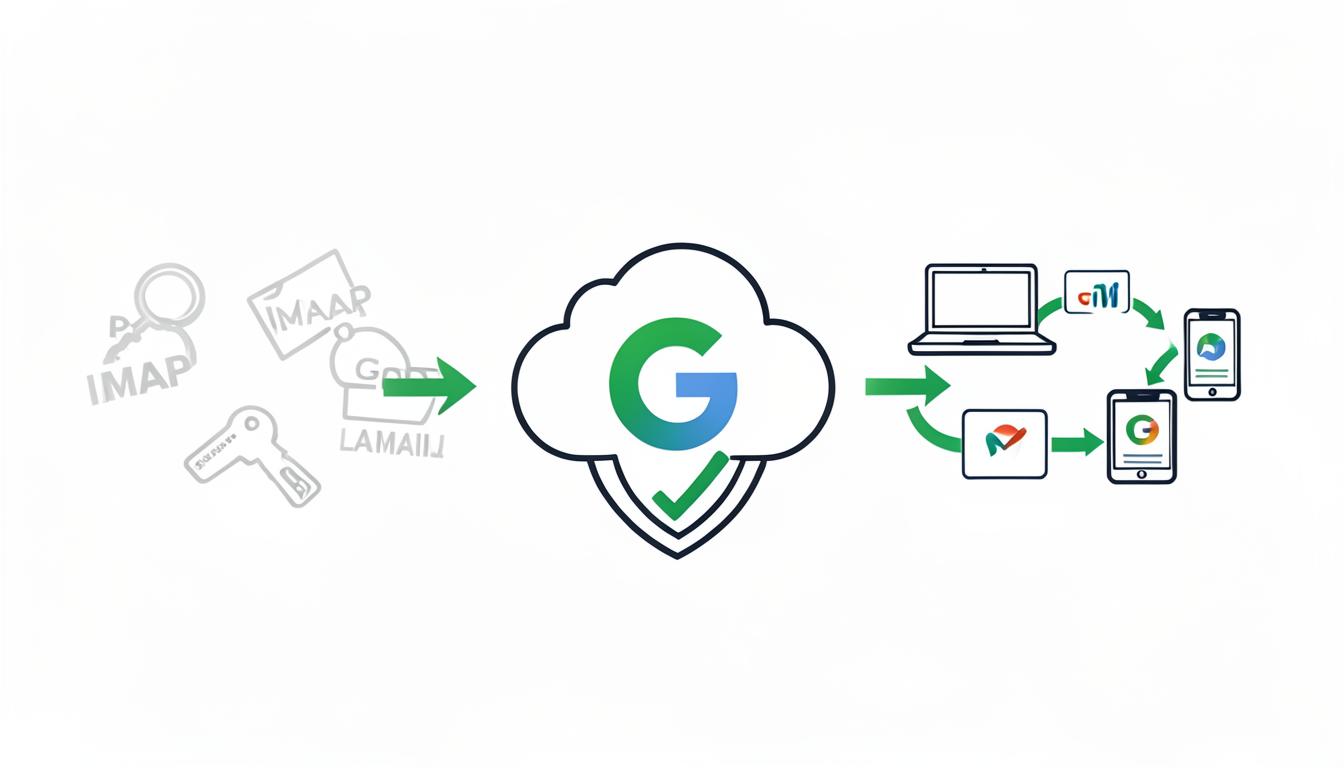
Google Workspace legacy access blocked: Gmail and Google apps protected by OAuth 2.0 while old POP and IMAP connections are stopped

Recommended posture: disable POP and IMAP, restrict OAuth clients

Google Workspace no longer provides a single “Block legacy authentication” switch. Since 2025, Google automatically blocks basic authentication from third-party applications that use only a username and password. Administrators should confirm password-based legacy access is no longer used, disable POP and IMAP unless required, restrict approved OAuth email clients, review app passwords, and control third-party application access.

Before you begin

You will need:

  • A Google Workspace Super Administrator account.
  • A list of email clients, scanners, applications and integrations used by the organisation.
  • Confirmation that business-critical applications support OAuth 2.0.
  • A separate, properly secured emergency administrator account.
  • A tested rollback plan.

Do not disable POP or IMAP until you have identified devices and applications that may depend on them.

What Google already blocks

Google Workspace no longer provides a single “Block legacy authentication” switch. Since 2025, Google has automatically blocked basic authentication from third-party applications that attempt to access Workspace accounts using only a username and password.

Google confirms that basic authentication for CalDAV, CardDAV, IMAP, SMTP and POP is no longer supported for Google Workspace accounts. Google: Transition from less secure apps to OAuth

1

Understand what Google already blocks

As of 2025, Google Workspace accounts no longer support “less secure apps” that authenticate using an ordinary account password.

  • The old Less secure apps control has been removed from the Google Admin console.
  • Administrators do not need to locate or enable a separate setting to block basic authentication.
  • Applications should now use Sign in with Google, OAuth 2.0, Google Workspace-supported APIs, a properly controlled app password where OAuth is genuinely unavailable, or an approved SMTP relay configuration.

An app password is not the user’s normal Google password, but it still bypasses the interactive second-verification challenge and should only be used when absolutely necessary.

2

Identify existing POP and IMAP access

Before disabling these protocols, determine whether they are being used by:

  • Microsoft Outlook
  • Apple Mail
  • Mozilla Thunderbird
  • Mobile mail applications
  • Backup or archiving products
  • CRM or ticketing platforms
  • Migration tools
  • Gmail monitoring applications
  • Automated mailbox-processing systems

Ask users whether they access Google Workspace email through applications other than Gmail. Review at least 7 to 30 days of activity — some applications connect only weekly or monthly.

Do not disable POP or IMAP until you have identified devices and applications that may depend on them.

3

Create a pilot organisational unit

Google Workspace does not provide a report-only mode for disabling POP or IMAP. A pilot organisational unit is therefore recommended.

  • In the Admin console, go to Directory.
  • Select Organisational units.
  • Select Create new organisational unit.
  • Enter a name such as: Legacy Access Blocking Pilot.
  • Add a description explaining that the unit is being used to test the disabling of POP and IMAP.
  • Select Create.
  • Move a small group of technically suitable test users into this organisational unit.

Do not move all users into the pilot group at once.

4

Disable POP for the pilot group

In the Admin console, go to: Apps → Google Workspace → Gmail

  • Select End User Access.
  • Select the Legacy Access Blocking Pilot organisational unit.
  • Locate POP and IMAP access.
  • Clear or turn off Enable POP access for all users.
  • Select Override if the organisational unit currently inherits its setting from the parent.
  • Select Save.

Changes can take up to 24 hours, although they usually apply sooner.

5

Disable or restrict IMAP for the pilot group

If your organisation does not need third-party email clients, remain in Apps → Google Workspace → Gmail → End User Access.

  • Select the pilot organisational unit.
  • Locate POP and IMAP access.
  • Clear or turn off Enable IMAP access for all users.
  • Select Save.

This is the strongest recommended setting where users access email through Gmail and approved Google applications. Mobile users may need to use the Gmail app instead.

If IMAP is genuinely required

  • Keep Enable IMAP access for all users selected.
  • Select Restrict which mail clients users can use (OAuth mail clients only).
  • Add only the approved OAuth client IDs.
  • Obtain the correct OAuth client ID from the application provider.
  • Select Save.

Do not select Allow any mail client unless there is a documented and approved business requirement.

6

Test the pilot users

  • Gmail in a web browser.
  • Gmail mobile application.
  • Google Calendar.
  • Google Contacts.
  • Approved Outlook configurations.
  • Approved Apple Mail configurations.
  • Shared or delegated mailboxes.
  • Email archiving.
  • CRM integrations.
  • Backup systems.
  • Automated mailbox-processing applications.
  • Mobile-device management profiles.

Confirm that normal Google sign-ins use the Google OAuth consent and authentication screens rather than requesting that users enter their Google password directly into an application.

7

Review app passwords

App passwords can allow older devices and applications to connect without completing the normal interactive 2-Step Verification process.

  • Scanners and multifunction printers
  • Older email clients
  • Monitoring appliances
  • Website contact forms
  • Backup products
  • CRM applications
  • Automated scripts

For each system: identify the account being used, identify why an app password is required, determine whether the application supports OAuth, replace the app password with OAuth wherever possible, consider an approved SMTP relay configuration if OAuth is unavailable, remove app passwords that are no longer needed, and document any app password that must remain.

8

Review third-party OAuth applications

Blocking legacy passwords does not prevent users from granting an unsafe OAuth application access to Google Workspace data.

  • In the Admin console, go to Security → Access and data control → API controls.
  • Select Manage Third-Party App Access.
  • Review the listed applications.
  • Check application name, OAuth client ID, verified or unverified status, requested Google services, number of users and access status.
  • Classify each application as Trusted (approved and required), Limited (allowed only approved services) or Blocked (prohibited).
  • Block unfamiliar, obsolete or unjustified applications.
  • Confirm that business-critical integrations continue operating.

Do not trust an application solely because users recognise its name. Confirm the publisher, OAuth client ID, permissions and business purpose.

9

Roll out the settings to the organisation

After the pilot has operated successfully:

  • Return to Apps → Google Workspace → Gmail → End User Access.
  • Select the top-level organisational unit.
  • Locate POP and IMAP access.
  • Disable POP access.
  • Either disable IMAP access completely, or restrict IMAP to specifically approved OAuth clients.
  • Select Save.
  • Check each child organisational unit for an Override.
  • Remove unnecessary overrides or configure each unit individually.
  • Allow up to 24 hours for the changes to apply.

An organisational unit with its own override may not inherit the new top-level setting.

10

Monitor after enforcement

  • Monitor support requests.
  • Review login, Gmail and OAuth application activity.
  • Investigate failed application connections.
  • Confirm scanners and automated systems can still send email.
  • Confirm users are not creating insecure workarounds.
  • Remove temporary exceptions as soon as applications are upgraded.
  • Record approved exceptions, owners and review dates.

Recommended final configuration

For organisations using Gmail and Google applications:

  • POP: Disabled
  • IMAP: Disabled
  • Basic password authentication: Already blocked by Google
  • App passwords: Removed unless formally approved
  • Third-party OAuth applications: Restricted and reviewed
  • 2-Step Verification: Enforced
  • Preferred authentication: Passkeys or security keys
  • Emergency administrator account: Separately secured and monitored

If third-party email clients are required:

  • POP: Disabled
  • IMAP: Enabled only for approved OAuth clients
  • Password-based connections: Prohibited
  • App passwords: Used only as a documented last resort

What could go wrong?

  • Outlook, Apple Mail or Thunderbird may stop synchronising.
  • Users may receive incorrect-password or authentication errors.
  • Mobile email applications may stop receiving messages.
  • Older devices may lose access to Gmail, Calendar or Contacts.
  • POP-based backup or archiving systems may stop collecting email.
  • IMAP-based CRM, ticketing or migration tools may fail.
  • Scanners and multifunction printers may stop sending email.
  • Website forms and server notifications may stop delivering messages.
  • Applications using app passwords may stop operating if those passwords are revoked.
  • Users may lose access to historical messages stored only in a local POP client.
  • OAuth applications may fail if they are accidentally classified as blocked.
  • Settings may apply inconsistently because of organisational-unit overrides.

Emergency rollback

  1. Sign in to the Google Admin console using a secured administrator account.
  2. Go to Apps → Google Workspace → Gmail → End User Access.
  3. Select the affected organisational unit.
  4. Locate POP and IMAP access.
  5. Temporarily restore only the protocol required.
  6. Select Save.
  7. Allow time for the setting to apply.
  8. Confirm the service has recovered.
  9. Develop a secure OAuth or SMTP relay replacement.
  10. Disable the temporary exception as soon as possible.

Do not broadly re-enable POP, IMAP or unrestricted application access for the entire organisation to resolve one device or application problem.

Google Workspace disclaimer

These instructions provide general security guidance and may not account for your organisation’s Google Workspace edition, organisational-unit structure, applications, scanners, mobile devices, compliance obligations or business-critical integrations.

Changing POP, IMAP, app-password or third-party application settings can interrupt email access, automated notifications, backups, scanners and line-of-business applications. Some changes can take up to 24 hours to apply or reverse.

Before proceeding, identify existing dependencies, perform a controlled pilot, maintain a tested administrator account and document a rollback plan. If you cannot confidently identify every affected application or device, engage a qualified Google Workspace engineer to assess and implement the change.

You accept responsibility for any service interruption, access issue, lost functionality or business impact caused by implementing these changes without professional assistance.