
SecureMyEmail logoSecureMyEmail

Microsoft 365 security guide

How to enable multi-factor authentication in Microsoft 365

A practical, step-by-step guide for Australian businesses. Use Conditional Access for proper organisation-wide enforcement, or Security Defaults if you do not have Entra ID P1.

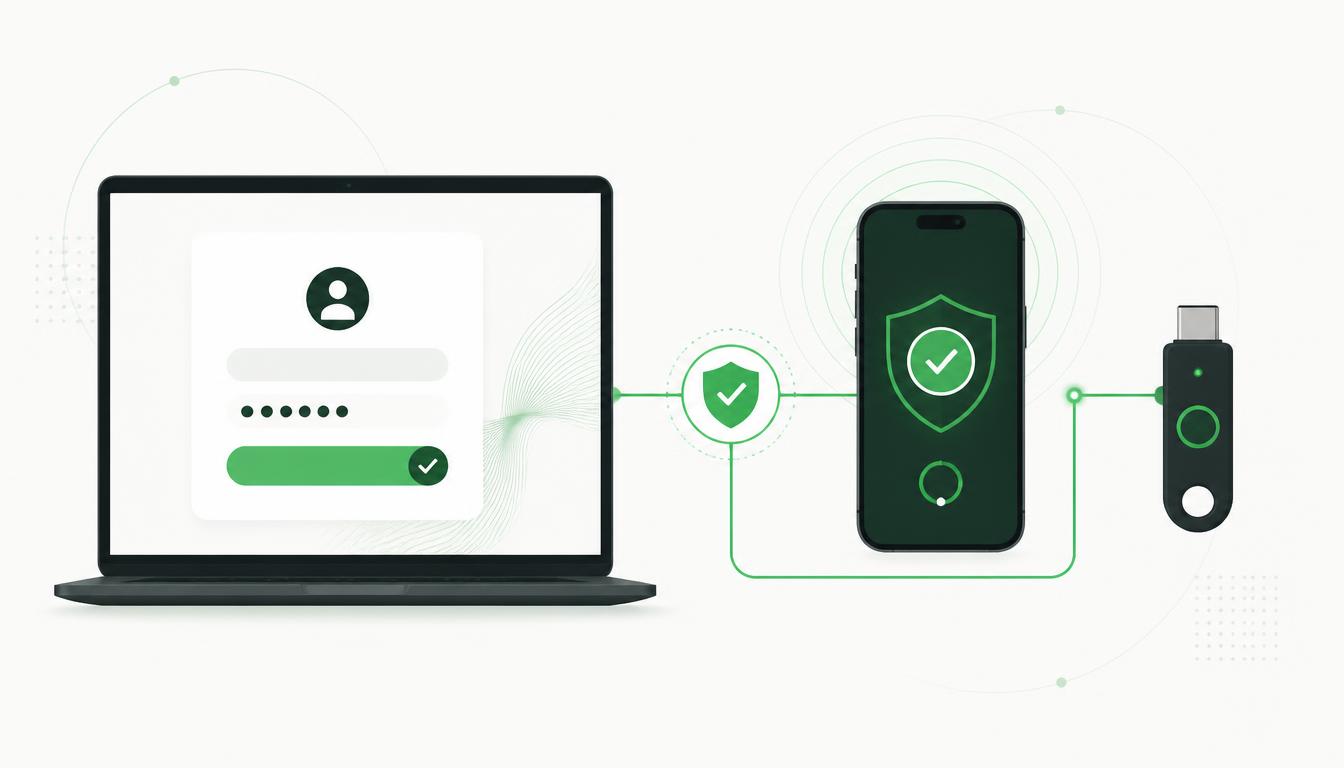
Microsoft 365 multi-factor authentication setup: laptop login, authenticator app and FIDO2 security key

Recommended method: Conditional Access

This provides proper organisation-wide enforcement and requires Microsoft Entra ID P1 or higher. Microsoft 365 Business Premium includes Entra ID P1; Microsoft 365 Business Standard does not. Avoid enabling the old "per-user MFA" option unless supporting a legacy configuration.

1

Prepare emergency administrator access

Before changing any policies, make sure you have a safe way back into the tenant.

  • Sign in to the Microsoft Entra admin centre.
  • Create or verify at least one dedicated emergency-access administrator account.
  • Give it the Global Administrator role.
  • Protect it with a separate, phishing-resistant authentication method.
  • Confirm that you can sign in with it.
  • Do not use this account for normal administration.

Microsoft recommends two cloud-only emergency-access accounts. Exclude these accounts from the initial Conditional Access policy to prevent accidental tenant lockout.

2

Enable the preferred authentication methods

Open the Microsoft Entra admin centre and go to:

Entra ID → Authentication methods → Policies

  • Select Microsoft Authenticator.
  • Set Enable to Yes.
  • Target All users, or begin with a pilot group.
  • Enable: Push notifications, Passwordless phone sign-in (if shown), and Number matching.
  • Save the policy.
3

Enable passkeys and FIDO2 security keys

Remain under:

Entra ID → Authentication methods → Policies

  • Select Passkey (FIDO2).
  • Select Enable and target.
  • Set Enable to On.
  • Select Add target.
  • Choose All users, or your pilot group.
  • Select the appropriate passkey profile.
  • Save the policy.

For Microsoft Authenticator passkeys

  • Open Passkey (FIDO2) → Configure.
  • Select Add profile.
  • Enter a name such as Microsoft Authenticator passkeys.
  • Select Device-bound under passkey types.
  • Under AAGUID behaviour, select Allow.
  • Add Microsoft Authenticator.
  • Save the profile.
  • Return to Enable and target and assign that profile.

Microsoft Authenticator passkeys require iOS 17 or later or Android 14 or later. FIDO2-compatible hardware keys can also be enabled through this policy.

4

Review weaker authentication methods

Under Authentication methods → Policies, review:

  • SMS
  • Voice call
  • Email OTP
  • Software OATH tokens

For a staged rollout, leave SMS temporarily available as a recovery or transition method. After users have registered Authenticator, passkeys or hardware security keys, disable SMS and voice for normal MFA where operationally possible. Do not remove a method until reports confirm that nobody depends on it.

5

Ask users to register

Send users to:

https://mysignins.microsoft.com/security-info
  • Sign in with their Microsoft 365 account.
  • Select Add sign-in method.
  • Register at least one of: Microsoft Authenticator, a passkey, or a FIDO2 hardware security key.
  • Preferably register a second recovery method.
  • Test the new method in a private browser window.

For users without an existing secure method, an administrator can issue a Temporary Access Pass to help them register passwordless methods.

6

Create the MFA Conditional Access policy

In the Entra admin centre, go to:

Entra ID → Conditional Access → Policies

  • Select New policy.
  • Name it: Require MFA – All Users – All Resources.
  • Under Users or workload identities: Include All users; Exclude your emergency-access accounts; Review service and synchronisation accounts separately.
  • Under Target resources: Select All resources.
  • Under Grant: Select Grant access, then Require authentication strength, then Multifactor authentication strength.
  • Set Enable policy to Report-only.
  • Select Create.

Microsoft recommends an all-users, all-resources baseline policy without application exclusions.

7

Test and activate the policy

  • Leave the policy in Report-only initially.
  • Test with your pilot users.
  • Check Entra ID → Monitoring & health → Sign-in logs. Look at the Conditional Access and Authentication details tabs.
  • Confirm that legitimate applications, mobile devices and administrative access still work.
  • Return to the policy and change Report-only to On.
  • Save it.
  • Test again using a normal user and an administrator.
8

Optionally enforce phishing-resistant authentication

Once passkeys and security keys are deployed, create a second Conditional Access policy using:

Grant → Require authentication strength → Phishing-resistant MFA

  • Use this first for Global Administrators and other privileged administrators.
  • Then extend to finance personnel and users with access to sensitive systems.

This restricts access to methods such as passkeys, FIDO2 keys and Windows Hello for Business rather than ordinary push, SMS or voice MFA.

Microsoft 365 alternative without Entra ID P1

If the organisation only has Business Standard or another licence without Conditional Access, use Security Defaults:

  1. Sign in to the Microsoft Entra admin centre.
  2. Go to: Entra ID → Overview → Properties.
  3. Select Manage security defaults.
  4. Set Security defaults to Enabled.
  5. Select Save.
  6. Have every user sign in and register Microsoft Authenticator.

Security Defaults:

  • Requires everyone to register for MFA.
  • Requires MFA when Microsoft considers it necessary.
  • Blocks legacy authentication.
  • Blocks device-code flow in applicable tenants.
  • Cannot be customised with exclusions or granular rules.
  • Primarily expects Microsoft Authenticator during registration.

Do not enable Security Defaults and Conditional Access as competing MFA solutions.

Microsoft 365 — Important warnings

  • Users who have not registered Microsoft Authenticator, a passkey or security key may be unable to sign in.
  • Administrators can accidentally lock themselves out of the Microsoft 365 tenant.
  • Disabling SMS or voice authentication too early can lock out users who still depend on those methods.
  • Conditional Access policies can unintentionally block access to Outlook, Teams, SharePoint, third-party applications and administration portals.
  • Service accounts, scanners, multifunction printers, backup systems, scripts and older applications may stop working if they use legacy authentication or interactive user credentials.
  • Enabling Security Defaults blocks legacy authentication and may affect older email clients, SMTP devices, POP, IMAP and older ActiveSync implementations.
  • Security Defaults cannot be customised with normal user or application exceptions.
  • Enabling a Conditional Access policy directly in On mode, without first testing it in Report-only mode, increases the risk of a widespread lockout.
  • Requiring phishing-resistant MFA before users have registered passkeys or FIDO2 security keys will prevent those users from signing in.
  • Lost, replaced or factory-reset phones can make Microsoft Authenticator or device-bound passkeys unavailable.
  • Passkeys created on shared or poorly secured devices could allow another person who can unlock that device to access the account.
  • Emergency-access accounts that are incorrectly configured, disabled or included in the wrong Conditional Access policy may not work when needed.
  • Enforcing MFA may expose previously unknown problems with shared accounts, old software, unattended automation and undocumented third-party integrations.
  • Microsoft licensing affects which controls are available. Conditional Access ordinarily requires Microsoft Entra ID P1 or higher.

Microsoft 365 disclaimer

These instructions are provided as general technical guidance and may not account for your Microsoft 365 licensing, existing Conditional Access policies, hybrid identity configuration, service accounts, third-party applications or business requirements.

Authentication changes can result in user disruption, failed applications or complete administrator lockout. Before proceeding, ensure that you have tested emergency-access accounts, documented all dependencies, confirmed user registration and tested the proposed policies with a pilot group.

If you choose to make these changes without assistance from a qualified Microsoft 365 or Microsoft Entra engineer, you do so at your own risk. Netlogyx accepts no responsibility for account lockouts, business interruption, data-access issues, application failures, recovery costs or security incidents resulting from incorrect configuration, incomplete testing or failure to maintain suitable recovery access.