Google Workspace: Secure File Sharing
Reviewed by Neil Frick — November 2026

▶ Watch the short explainer for this tip
Sharing files through Google Workspace makes it easy to collaborate with customers, suppliers and contractors. But do you know who can access the information your business shares? A document containing confidential customer information, pricing or business records could be accessed by unintended recipients if sharing permissions aren't managed carefully. ** Quick answer:** Google Workspace provides controls that allow you to manage who can access your files, restrict external sharing and protect sensitive information without unnecessarily disrupting collaboration. In this guide, we'll explain the risks of external file sharing, which security settings are worth reviewing and how to help ensure your business information reaches only the people who need it.
Google Workspace sharing controls at a glance
Google Workspace makes it easy to share files with employees, customers, suppliers and contractors. However, without appropriate controls, confidential information could become accessible to people outside your business. ** The important thing is finding the right balance between protecting business information and allowing your team to work effectively.**
| Control | Recommended approach | Scope or limitation |
|---|---|---|
| Admin console path | Apps > Google Workspace > Drive and Docs > Sharing settings > Sharing options | Use an administrator account with the required Drive settings privileges. |
| Sharing outside your organisation | Off for teams that do not need external collaboration | Applies to files covered by the selected organisational unit's policy. |
| Partner exceptions | Allow sharing only with trusted domains where available and needed | Domain allowlisting permits external collaboration; it does not block it entirely. |
| Public links and web publishing | Disable public sharing wherever external collaboration remains enabled | A restrictive default alone does not prevent users choosing broader access. |
| Shared drives | Check each shared drive's organisational unit and sharing restrictions | Do not assume a member's personal Drive policy controls shared-drive content. |
| Rollout timing | Allow up to 24 hours, although changes usually happen sooner | Test after the policy has taken effect. |
| Licensing and cost | Basic external-sharing controls need no separate add-on | Check edition support for advanced controls and policy exceptions. |
An organisational unit is a group of users or shared drives to which administrators apply policies. Check inherited settings and any configuration-group overrides before making changes.
Why external sharing matters to your business
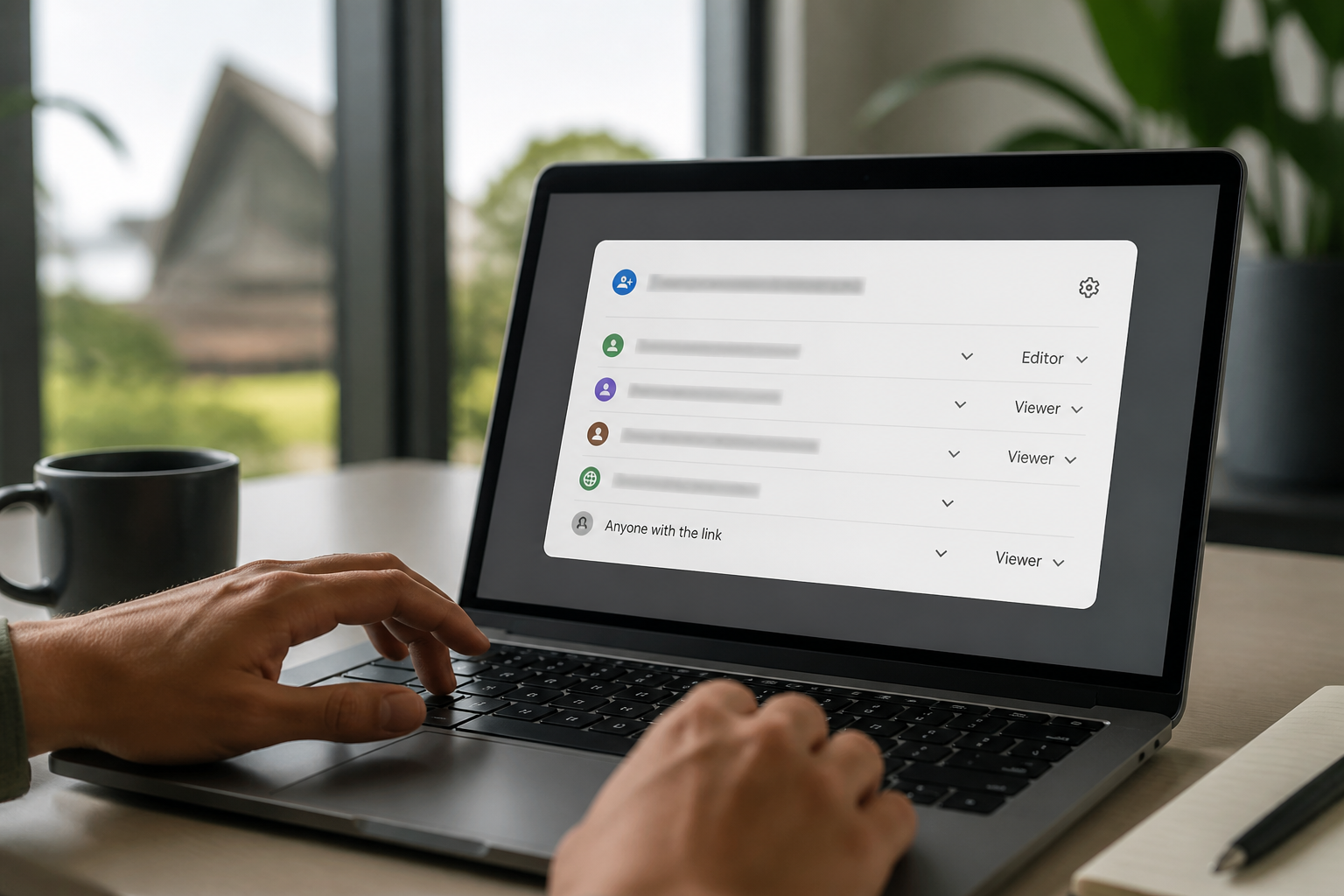
Sharing files through Google Workspace makes it easy to collaborate with customers, suppliers and contractors, work on documents together and access up-to-date information without constantly exchanging emails and attachments. For example, your accountant might need financial records, a contractor may require project documents, or a customer may need to review a proposal, however, sharing files outside your organisation can introduce security risks. A document shared using "Anyone with the link" could be accessed by unintended recipients if that link is forwarded. Although you can remove someone's access to a Google Drive file, you can't remove copies of documents that have already been downloaded or shared, meaning that confidential business information could be stored outside your control. This is why it is important to carefully manage who can access confidential files before sharing them. ** The goal isn't to restrict collaboration, but to ensure the right people have access to the right information.**
What Controls Should I Review to Maintain Security
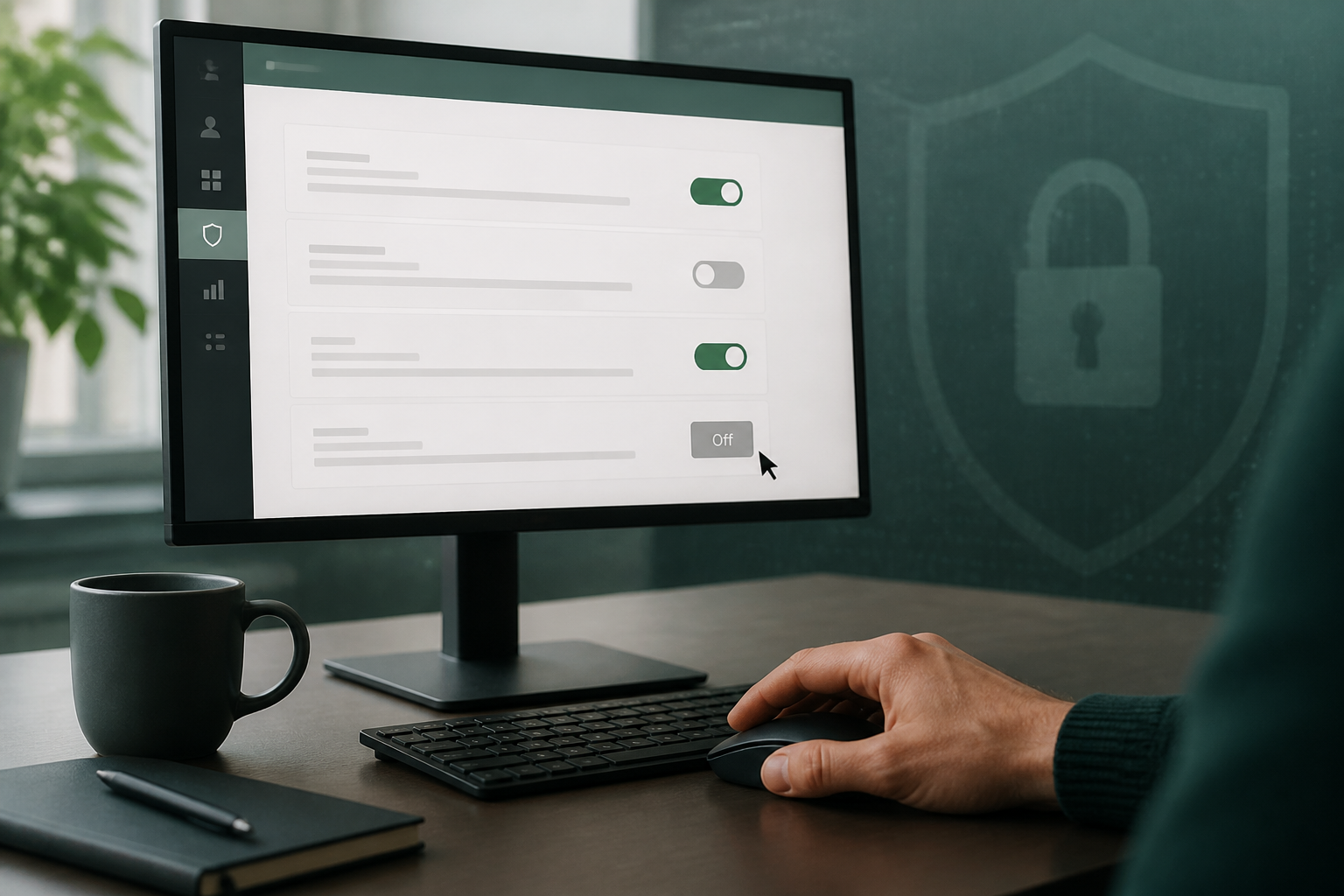
Google Workspace provides security settings that allow administrators to manage how files are shared. Consider the following: - External sharing restrictions: Decide whether employees can share files outside your organisation, only with approved organisations or with specific people. - Access permissions: Give users only the access they need to view, comment on or edit documents. - Public link restrictions: Limit the use of "Anyone with the link" for sensitive business information. - Regular access reviews: Remove outdated permissions and access that is no longer required. - Two-step verification: Add another layer of protection to employee accounts. Important: Before changing your settings, review existing sharing arrangements to avoid disrupting legitimate business activities. Your Google Workspace administrator can review these controls through the Google Admin console under Apps → Google Workspace → Drive and Docs → Sharing settings. ** Knowing who can access your business files is just as important as knowing where they're stored.**
- Identify externally shared files, published content and shared drives, and agree on any necessary partner exceptions.
- Sign in to admin.google.com and go to Apps > Google Workspace > Drive and Docs > Sharing settings.
- Select the organisational unit you want to change and check inherited settings and any configuration-group overrides.
- Open Sharing options, set sharing outside your organisation to Off and save.
- Configure any approved partner exceptions separately using trusted-domain restrictions where supported, and disable public sharing for those teams.
- Review shared drives' organisational units and sharing restrictions so their content follows the intended policy.
- Notify affected staff and partners, allow up to 24 hours, then test new sharing attempts and existing external links.
What Happens to Files You've Already Shared?
Disabling external sharing can also prevent outside users from accessing documents that were previously shared with them, ** however, those permissions may become effective again if external sharing is re-enabled.** Note that restricting access cannot retrieve information someone has already downloaded or copied.
How Can You Check Your Sharing Controls?
- Ask your Google Workspace administrator to review your external sharing settings and test them using a non-sensitive document. - Confirm that authorised users can still access the information they need and that unauthorised external users cannot. Basic sharing controls are included with Google Workspace business subscriptions. More advanced features, such as Data Loss Prevention (DLP), which can help identify and restrict the sharing of sensitive information, depend on your subscription. ** Security settings should be reviewed and tested regularly, not simply enabled and forgotten.**
How Netlogyx Can Help
For over 25 years, Netlogyx has helped Australian businesses protect their information, manage their technology and embrace evolving solutions. Our team can review your Google Workspace sharing policies, identify potential security gaps and help configure controls that protect your information while supporting your business operations. Do you know who can access the files your business shares through Google Workspace? Book a consultation with Netlogyx or call 1300 044 320.
Google Workspace makes collaboration easy, but external file sharing needs appropriate controls. Regularly reviewing permissions, restricting unnecessary access and testing your settings can help protect confidential information without disrupting business operations.
Disclaimer: This article provides general technical information and does not constitute formal legal, risk, or compliance advice. Every business environment is unique. For specific advice regarding your Google Workspace environment or compliance obligations, consult a qualified security professional.
Complimentary guide
Business Cloud Security Checklist
Frequently asked questions
- Does it cost extra to change Google Drive external sharing settings?
- Basic external-sharing controls need no separate add-on to your Google Workspace subscription. Advanced controls and exception options vary by edition, so check your entitlement before relying on them.
- Is stopping external file sharing in Google Drive enough on its own?
- No single control secures your cloud environment entirely. Also review two-step verification, administrator access and third-party app permissions, and remember that sharing restrictions cannot recall downloaded copies.
- Does disabling external sharing satisfy the Australian Privacy Act?
- Disabling open external sharing supports broader cybersecurity controls, but it alone does not establish compliance. Australian privacy law requires holistic measures to safeguard personal information against loss, misuse, and unauthorised disclosure.
- Will changing this setting break existing shared document links?
- Yes, external users lose access to previously shared files covered by an external-sharing block once it takes effect. Old permissions may become effective again if you later restore external sharing, so remove access that is no longer needed.
- Can certain departments still share files with outside suppliers?
- Yes, you can apply different policies to organisational units and use trusted-domain restrictions where supported. Check shared-drive policies separately, and require staff to share only with the intended recipients.
- What happens if a staff member tries to share with an external account?
- Google Drive blocks sharing that the applicable policy does not allow. If trusted-domain sharing is enabled, recipients outside those domains remain blocked; the exact message depends on the sharing action.
- How long do sharing policy changes take?
- Changes can take up to 24 hours, although they usually happen sooner. Allow for that rollout period before treating a failed test as a configuration problem.
Sources
Every reference below was link-checked when this article was published.
- 1.Set Drive users' sharing permissionsGoogle Workspace Admin Help
- 2.Notifiable Data Breaches schemeOffice of the Australian Information Commissioner
- 3.Essential Eight Maturity ModelAustralian Signals Directorate — ACSC
Want to know where your own tenant stands?
The audit answers these questions with a dated report on your actual settings — a few questions to start, under a minute.