Gmail External Recipient Warnings
Reviewed by Neil Frick — August 2026
▶ Watch the short explainer for this tip
Protecting your email is crucial for any Australian small to medium business. One simple yet effective setting in Google Workspace can significantly reduce your risk of falling victim to business email compromise (BEC) and accidental data leaks. This tech tip from Neil Frick (CISSP) walks you through enabling external recipient warning banners in Gmail, a straightforward step to enhance your email security posture.
What is the Gmail External Recipient Warning Setting?
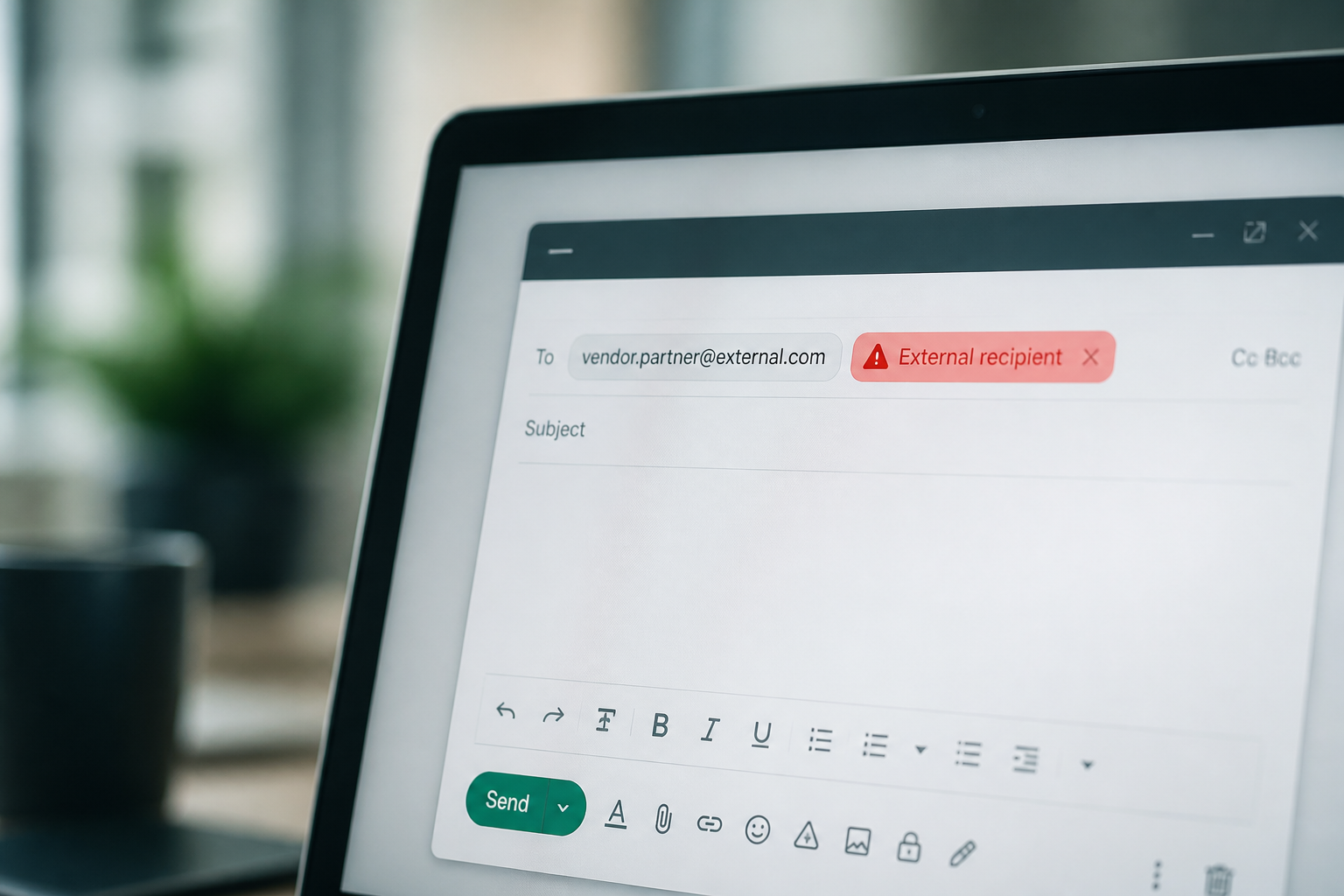
This security setting adds a visible 'warning chip' next to the name of any recipient who is outside your organisation when composing an email in Gmail. It acts as a clear visual cue for senders, making them pause and consider if they truly intend to send sensitive information externally. This simple banner helps prevent misdirected emails and raises awareness before potential data breaches.
Why Enable External Recipient Warnings for Your Small Business?
Enabling these warnings significantly enhances your email security by reducing the risk of accidental data disclosure and business email compromise (BEC) scams. By providing a clear visual prompt, your staff are less likely to inadvertently send sensitive information to the wrong external party. This proactive measure strengthens your defence against phishing attempts and protects your business's reputation and data integrity.
What Happens If You Don't Enable This Gmail Security Setting?
If you leave this setting as-is, your business remains more vulnerable to email-based threats, potentially leading to significant financial losses or data breaches. Without the visual warning, staff might unknowingly respond to sophisticated phishing emails, disclose confidential information to external imposters, or mistakenly send sensitive data outside the company. Such incidents can result in monetary losses, reputational damage, and legal implications under privacy laws like the notifiable data breach (NDB) scheme.
Step-by-Step: Enabling Gmail External Recipient Warnings in Google Workspace
Here are the verified steps to turn on this crucial email security setting. If you're not confident, book a complimentary 15-minute chat with Neil at https://calendly.com/netlogyx/m365audit. 1. Sign in to admin.google.com and go to Apps > Google Workspace > Gmail > End User Access. 2. Find Warn for external recipients. 3. Tick Highlight any external recipients in a conversation and allow the sender to unhighlight, for all organisational units. 4. Save, then in Apps > Google Workspace > Gmail > Safety confirm the Spoofing and authentication warnings for unauthenticated senders are also on.
Confirming the Setting and Advising Your Staff
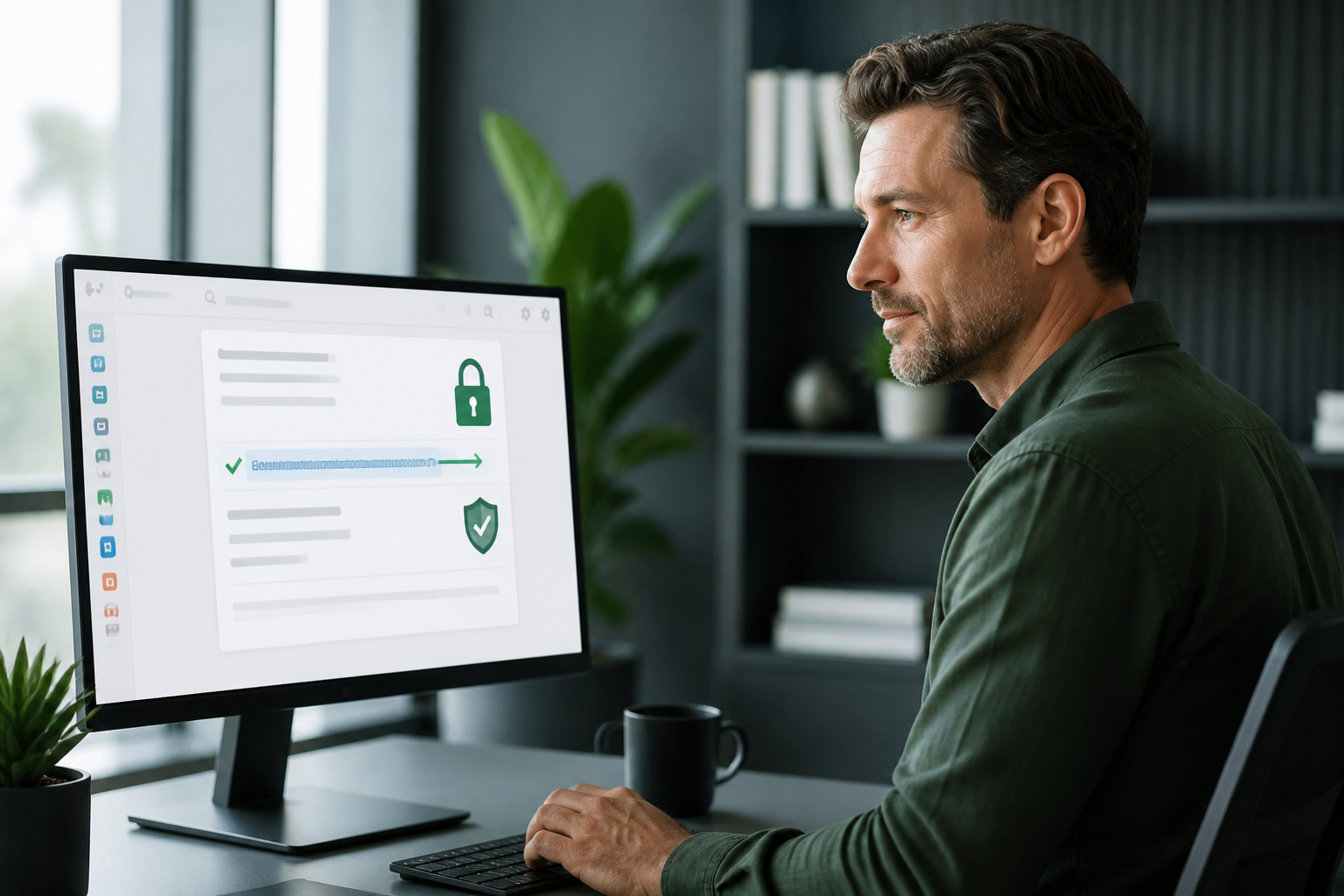
To check it worked, simply compose a message to an outside address — Gmail should show a warning chip next to the external recipient. This setting causes no disruption to email flow. However, it's vital to tell your staff what this new chip means so they understand its purpose and do not click past it out of habit. Proper communication ensures your team uses this new security feature effectively.
Important Disclaimer
The steps outlined are accurate at the time of publishing. However, email platform menus and default settings can change without notice. If you are not confident in making these changes yourself, it's best to seek expert help, as incorrect modifications can disrupt your email service. SecureMyEmail by Netlogyx IT accepts no responsibility for any loss or damage caused by changes made without our direct involvement. For peace of mind with your Gmail security audit for small business, consider booking a complimentary 15-minute chat with Neil to discuss a professional audit.
Enabling external recipient warnings in Gmail is a simple, effective way to boost your email security, protecting your Australian small business from costly mistakes and malicious attacks. It provides a visual safeguard that prompts staff to think twice before sending sensitive information outside your organisation.
Disclaimer: The steps outlined are accurate at the time of publishing. However, email platform menus and default settings can change without notice. If you are not confident in making these changes yourself, it's best to seek expert help, as incorrect modifications can disrupt your email service. SecureMyEmail by Netlogyx IT accepts no responsibility for any loss or damage caused by changes made without our direct involvement.
Frequently asked questions
- What is an external recipient warning in Gmail?
- An external recipient warning in Gmail is a visual alert, typically a coloured chip, that appears next to an email address in the 'To', 'Cc', or 'Bcc' fields if the recipient is outside your organisation's Google Workspace domain. It's a key feature for boosting your Gmail security audit for small business.
- Why should Australian small businesses use Gmail external recipient warnings?
- Australian small businesses should use these warnings to prevent accidental data breaches, reduce the risk of falling for business email compromise (BEC) scams, and comply with privacy regulations. It adds an extra layer of protection by making staff aware when they're sending information externally, which is crucial for email security for Australian businesses.
- Will enabling external recipient warnings disrupt my email service?
- No, enabling external recipient warnings in Gmail will not disrupt your email service. This setting only adds a visual cue to the sender within the Gmail interface and does not affect the delivery or functionality of emails. It's a non-disruptive way to enhance your Google Workspace security settings.
- Where can I get help if I'm not confident changing Google Workspace settings?
- If you're not confident changing Google Workspace settings yourself, it's best to seek expert help, as incorrect changes can disrupt your email service. You can book a complimentary 15-minute chat with Neil Frick at SecureMyEmail to discuss a professional security audit and assistance.
Sources
Every reference below was link-checked when this article was published.
- 1.Notifiable Data Breaches schemeOffice of the Australian Information Commissioner
- 2.Data breach preparation and responseOffice of the Australian Information Commissioner
Want to know where your own tenant stands?
The audit answers these questions with a dated report on your actual settings — a few questions to start, under a minute.