Boost Microsoft 365 Email Security: Safe Links and Attachments for SMB
Reviewed by Neil Frick — September 2026
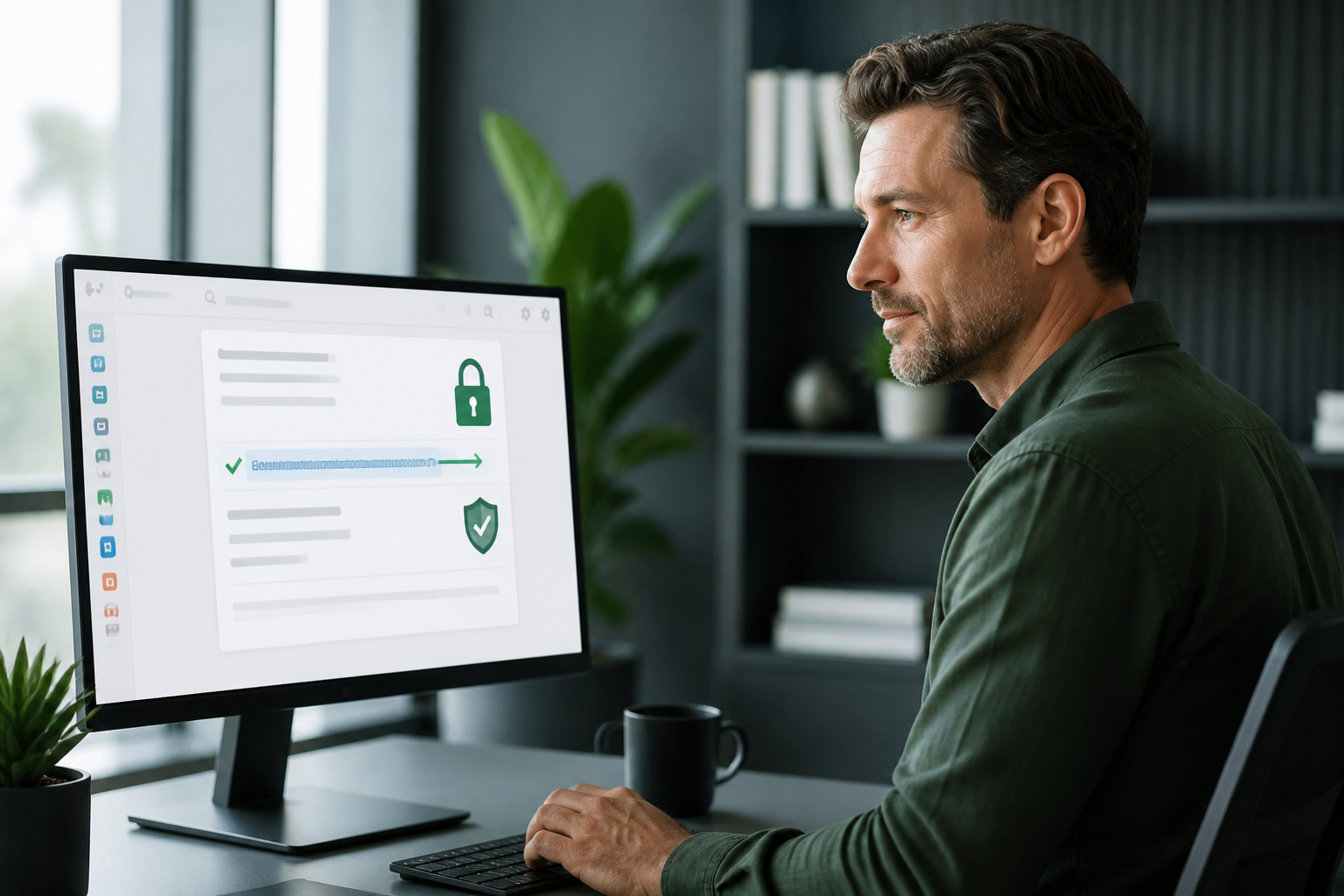
Phishing emails and malicious attachments are some of the biggest threats to Australian small and medium businesses (SMBs). They can lead to costly data breaches, downtime, and reputational damage. Fortunately, Microsoft 365 offers robust built-in protections. Today's tech tip focuses on enabling two essential features: Safe Links and Safe Attachments. These aren't just technical settings; they're critical layers of defence that actively scan and neutralise threats before they can reach your inbox or cause harm.
What are Safe Links and Safe Attachments in Microsoft 365?
Safe Links and Safe Attachments are security features within Microsoft Defender for Office 365 that protect your business from malicious email content. Safe Links scans URLs in emails and Microsoft Office documents, rewriting them and checking them in real-time when clicked. Safe Attachments scans email attachments for malware, blocking or sandboxing suspicious files before they reach your users. These features provide a critical layer of defence against sophisticated cyber threats.
Why Enable Safe Links and Safe Attachments for Australian SMBs?
You should enable these features to significantly reduce your exposure to phishing and malware attacks. They actively stop users from clicking on harmful links or opening infected files, which are common entry points for ransomware and business email compromise (BEC) scams. Proactively securing your email helps protect your data, your clients, and your business's reputation from cyber threats. For a complimentary 15-minute chat about securing your Microsoft 365 environment, book with Neil Frick at calendly.com/netlogyx/m365audit.
What Happens if You Don't Enable These Protections?
If you leave Safe Links and Safe Attachments turned off, your business remains vulnerable to a wide array of email-borne threats. Without these safeguards, a single click on a malicious link or the opening of an infected attachment could lead to a system compromise, data theft, or a notifiable data breach (NDB). This could result in significant financial loss, operational downtime, damage to customer trust, and potential regulatory fines. It also exposes you to risks that Australian Cyber Security Centre (ACSC) guidelines recommend mitigating.
Step-by-Step Guide to Turning On Safe Links and Safe Attachments
Here's how to turn on Safe Links and Safe Attachments in Microsoft 365, ensuring robust email protection for your business: 1. Sign in to security.microsoft.com and go to Email & collaboration > Policies & rules > Threat policies. 2. Under Templated policies select Preset security policies and turn on Standard protection, which applies Safe Links and Safe Attachments to everyone. 3. If you prefer manual control, instead open Safe Attachments, create a policy with the action set to Block, and apply it to your accepted domains. 4. Then open Safe Links, create a policy that turns on URL scanning in email, Teams and Office apps, and Save.
How to Verify & What to Warn Staff About
To check it worked, send yourself a test link; the URL in the received message should be rewritten to a safelinks.protection.outlook.com address. Be aware that these features require Microsoft Defender for Office 365 Plan 1 or Business Premium subscriptions. Staff should also be warned that attachment scanning may add a short delivery delay, particularly for larger files. Consider this a minor trade-off for significantly enhanced security.
Important Disclaimer for Your Security Settings
These steps are accurate at the time of publishing, but email platform menus and defaults can change. If you're not confident, please don't change settings yourself, as incorrect modifications can disrupt email service. SecureMyEmail accepts no responsibility for loss or damage caused by changes made without our direct involvement. If you'd like a professional assessment, book a complimentary 15-minute chat with Neil Frick about a Microsoft 365 security audit for small business at calendly.com/netlogyx/m365audit.
Enabling Safe Links and Safe Attachments is a non-negotiable step for any Australian SMB serious about cybersecurity. It significantly hardens your email defences against the most common and damaging threats, safeguarding your operations and reputation.
Disclaimer: These steps are accurate at the time of publishing, but email platform menus and defaults can change. If you're not confident, please don't change settings yourself, as incorrect modifications can disrupt email service. SecureMyEmail accepts no responsibility for loss or damage caused by changes made without our direct involvement.
Frequently asked questions
- What is Microsoft Defender for Office 365?
- Microsoft Defender for Office 365 is a cloud-based email filtering service that protects organisations from advanced threats like phishing, business email compromise (BEC), and malware. It includes features like Safe Links and Safe Attachments to enhance security beyond standard Exchange Online Protection.
- Will enabling Safe Attachments slow down email delivery for Australian small businesses?
- Yes, enabling Safe Attachments can introduce a short delay in email delivery, especially for larger files, as attachments are scanned in a sandbox environment. This minor delay is a worthwhile trade-off for robust protection against malicious content.
- Can Safe Links protect against links in Microsoft Teams and Office apps?
- Yes, Safe Links policies can be configured to extend protection beyond email to include links in Microsoft Teams and Office applications like Word, Excel, and PowerPoint. This comprehensive coverage helps safeguard users no matter where they encounter a URL.
- Do I need a specific Microsoft 365 license for these features?
- Yes, Safe Links and Safe Attachments are premium security features requiring a Microsoft Defender for Office 365 Plan 1 license, or they are included with Microsoft 365 Business Premium. Standard Microsoft 365 Business Basic or Standard subscriptions do not include these advanced protections.
- How can I check if Safe Links is working in my Microsoft 365 tenant?
- You can verify Safe Links is working by sending yourself a test email containing a link. If the feature is active, the URL in the received message will be rewritten to an address starting with safelinks.protection.outlook.com, indicating it's being processed.
Sources
Every reference below was link-checked when this article was published.
- 1.Microsoft Defender for Office 365 security recommendationsMicrosoft Learn
- 2.Security defaults in Microsoft Entra IDMicrosoft Learn
Want to know where your own tenant stands?
The audit answers these questions with a dated report on your actual settings — a few questions to start, under a minute.