
Help staff spot external emails with a Microsoft 365 banner
Reviewed by Neil Frick — November 2026
▶ Watch the short explainer for this tip
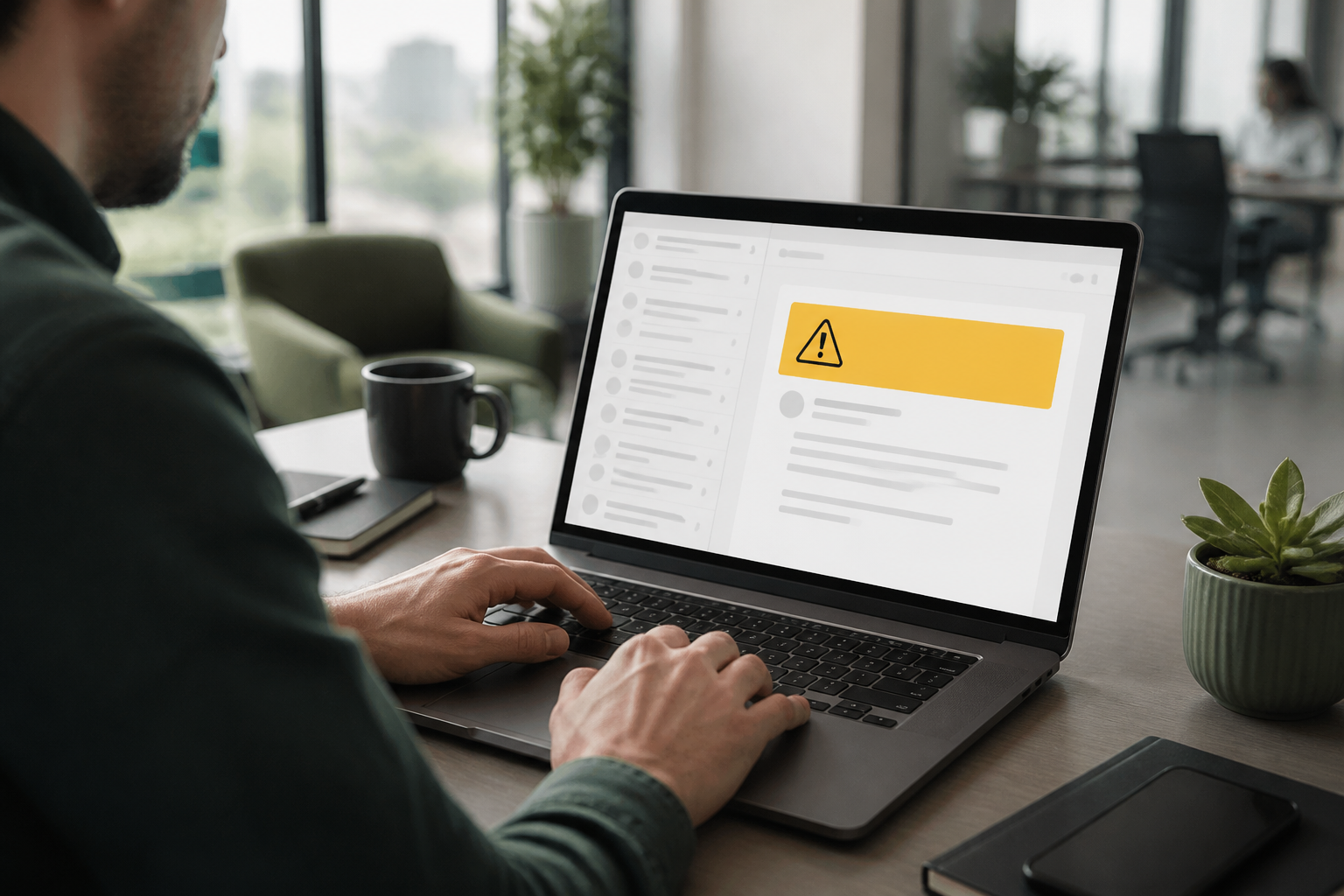
An email displaying your director's name can still come from an outside address. A Microsoft 365 external sender banner gives staff a useful cue to check unexpected payment or account-change requests.
What does an external sender banner tell staff?
The banner adds a short notice above the message body when Exchange classifies the sender as external and the rule's other conditions match. It signals where the message came from, not whether its contents are safe.
| Setting | Configuration | What to know |
|---|---|---|
| Admin location | Exchange admin center > Mail flow > Rules | Use an account with permission to manage mail flow rules, such as an Exchange Administrator. |
| Message scope | Sender outside the organisation; recipient inside the organisation | Start with a small pilot group. |
| Action | Apply a disclaimer to the message > prepend a disclaimer | Use short, neutral warning text. |
| Fallback | Wrap, if suitable after testing | If Exchange cannot insert the notice, it attaches the original message to a new message containing the notice. |
| Existing warning text | Do not routinely exempt messages containing the banner phrase | An attacker can copy the phrase to bypass that exception. |
| Activation | Allow around 30 minutes for rule changes to take effect | Verify delivery and display before expanding the rollout. |
| Licensing | Exchange Online Plan 1 or Plan 2, including subscriptions containing either | No additional security add-on is needed for this rule. |
This is a message-body banner, not Outlook's native External label. Encrypted or digitally signed messages may need fallback handling, so test these before rollout.
Why does this matter for Australian businesses?
An outside sender can use a familiar display name to make an invoice or payroll request look internal. A visible warning can prompt staff to pause, reducing the chance of an unchecked request causing financial loss or recovery work.
Staff should verify unexpected payment-detail changes using a known phone number, not contact details supplied in the email. A missing banner is not proof of safety: compromised internal accounts and rule exceptions can also expose staff to misleading messages.
How to set up and pilot the warning banner
Use a small pilot before applying the rule broadly. Keep the wording neutral so ordinary customer and supplier messages remain easy to read.
- Sign in to https://admin.exchange.microsoft.com with an account authorised to manage mail flow rules, such as an Exchange Administrator.
- Go to Mail flow > Rules and select Add a rule > Create a new rule; give it a descriptive name.
- Under Apply this rule if, set the sender location to Outside the organization and add a recipient-location condition for Inside the organization.
- Add a recipient-group condition to limit the initial rollout to a small pilot group.
- Under Do the following, choose Apply a disclaimer to the message > prepend a disclaimer; enter: 'External email: check the sender before acting on unexpected requests.'
- Choose Wrap as the fallback if attaching an unmodifiable original message is acceptable; review the delivery impact before proceeding.
- Complete the rule settings, select Enforce, save the rule and enable it in the rules list.
- Allow around 30 minutes, test external and internal messages, then remove the pilot-group restriction only after the checks pass.
What does it cost?
The rule needs no additional security licence when your subscription includes Exchange Online Plan 1 or Plan 2. Microsoft 365 Business Basic, Business Standard and Business Premium include Exchange Online; subscriptions without hosted email do not provide this capability on their own.
Allow for staff or IT-provider time to configure, test and maintain the rule. That work may carry a cost even when the feature is included in your subscription.
Which rollout mistakes weaken the warning?
Avoid broad exceptions for suppliers, shared mailboxes or externally hosted business systems. Legitimate external mail is still external, and exceptions remove the cue staff are meant to notice.
Do not routinely skip messages because the subject or body already contains your warning phrase. Although this reduces repeated banners in reply chains, an attacker can include the same phrase to avoid a fresh warning.
Repeated warnings can become distracting, especially on phones. If body banners create too much clutter, consider Exchange Online's native external sender identification, which shows an External label in supported Outlook clients without inserting text into the message body.
How do you verify the rule without disrupting email?
Send an external test message to a pilot recipient and confirm the banner appears; send an internal message and confirm it does not. Test Outlook on the web, desktop and mobile, including replies and message previews.
Check encrypted or digitally signed messages and messages from your invoicing or ticketing systems. Confirm the fallback delivers usable messages, and review other mail flow rules for priority or stop-processing settings that could prevent this rule from running.
Where does the banner fit in a wider security review?
A wider review should also cover multi-factor authentication, which requires more than a password to sign in, along with email filtering, sender authentication and administrator access. Staff still need a clear process for verifying sensitive requests and reporting suspicious messages.
The banner supports broader cybersecurity controls but does not establish compliance with the Privacy Act or the Notifiable Data Breaches scheme. Treat it as a visible reminder, not a substitute for protecting accounts or assessing a suspected breach.
Pilot a short, neutral banner with a small group, then check external, internal and protected messages before extending it to everyone.
Disclaimer: This tech tip provides general technical information for Australian businesses and does not constitute formal legal or cybersecurity advice. Specific configurations depend on your software licencing, operating environment, and organisational risk requirements.

Complimentary guide
The Basics of Email Security
Frequently asked questions
- How much does an external sender warning banner in Microsoft 365 cost?
- There is no extra feature charge with Exchange Online Plan 1 or Plan 2, including subscriptions that contain either plan. Configuration, testing and ongoing IT support may still cost money.
- Is an external sender warning banner enough to stop email fraud?
- No, the banner is a visual cue, not a fraud filter or identity check. Use it alongside account protections, email filtering and independent verification of sensitive requests.
- Does an external email banner satisfy Australian cyber insurance requirements?
- A banner alone does not establish that you meet your policy's requirements. Check the policy wording and ask your insurer or broker which controls and evidence are required.
- Why does the warning banner repeat in email replies?
- Each matching incoming reply can receive another banner while earlier warnings remain in the quoted conversation. Skipping messages that contain the warning phrase reduces duplication but creates a bypass an attacker can exploit.
- Will the banner appear on mobile devices?
- A banner inserted into the message body is generally visible in mobile email apps, although formatting and previews vary. Test the apps your staff use and keep the wording short.
- Can external senders see the warning when we reply?
- Yes, if the reply includes quoted text containing the banner. Use wording you are comfortable sharing with customers and suppliers.
- How is a banner different from Outlook's External label?
- A banner changes the message body; Outlook's native External label does not. Exchange Online administrators can enable native external sender identification separately, but its display depends on the Outlook client and version.
Sources
Every reference below was link-checked when this article was published.
- 1.Microsoft Defender for Office 365 security recommendationsMicrosoft Learn
- 2.Block legacy authentication with Conditional AccessMicrosoft Learn
- 3.Business Email CompromiseAustralian Signals Directorate — ACSC
Want to know where your own tenant stands?
The audit answers these questions with a dated report on your actual settings — a few questions to start, under a minute.